

You're reading the docs for Draftbit Classic (v1), our previous builder. In Draftbit today, you describe the app you want and the agent writes real code you own.
Typography
Typography applies to components such as Text, Text Input, Styled Text Area, Button , etc. It is available in the Styles Panel.
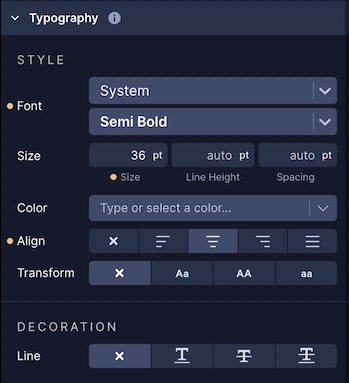
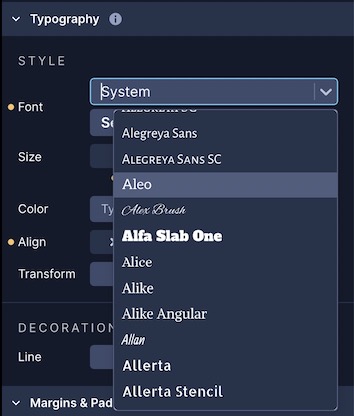
Draftbit supports Google Fonts. You can select the font of the Text with any of the pre-defined Google Fonts from the Font Picker.
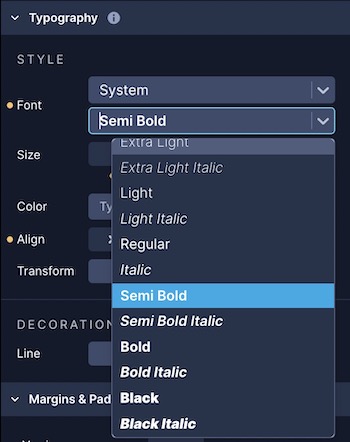
For each font, you can also select the available font-weight on each font.
You can find look for a complete list of fonts at fonts.google.com.
Select the color of the Text.
Set the Text alignment.
| Property | Description |
|---|---|
| Auto | Default value. Aligns text in the context to the parent component. |
| Left | Aligns text to the left |
| Right | Aligns text to the right |
| Center | Aligns text in the center |
| Justify | Aligns text so it is spaced to line up its left and right edges to the left and right edges of the line box, except for the last line |
Transform
Section titled “Transform”Transform the text.
| Property | Description |
|---|---|
| Capitalize | Capitalizes the first letter of each word |
| Uppercase | Makes all text uppercase |
| Lowercase | Makes all text lowercase |
Decoration
Section titled “Decoration”Line
| Property | Description |
|---|---|
| Underline | Adds a line under the text |
| Line-Through | Adds a line through the text |
| Underline Line-Through | Adds a line under the text and through the text |
Color
Select the color of the line decoration. Applicable only when a Line property is selected.
Style
Set the style of the line decoration.
| Property | Description |
|---|---|
| Solid | Sets a solid line |
| Double | Sets a double line |
| Dotted | Sets a dotted line |
| Dashed | Sets a dashed line |