

Self-Publishing to the Apple App Store
This guide will show you how to get your app onto Apple Store so you can submit it for App Store review and approval.
Create an Apple Developer account
Section titled “Create an Apple Developer account”The next step before building your app’s binary and submitting it to the App store is to create a new Developer account using an existing Apple ID. Also, make sure that your Apple ID has two-factor authentication enabled. If not, read here on how to enable it.
- Go to https://appleid.apple.com/#!&page=signin and sign in to your Apple ID account
- After signing in, go to https://developer.apple.com/programs/enroll/. Check to agree to all of the terms.
- Apple requires a $99 (USD) enrollment fee per year to create a developer account.
- On the next web page choose whether you want your Apple Developer account to be an individual or an organization.
- You would choose an organization if your app is for a business. This means that the company information is shown in the app store listing rather than your personal information. Note: Your company must already be a legal entity for you to choose this option.
- If you choose an organization, Apple will require you to enter your organization’s DUNS number.
- To see if your organization already has a DUNS number go here. If you don’t have it, you can request it here.
- This process will take around 14 business days.
- If you are registering for Apple Developer account as an individual, it may take up to 48 hours to get your new account reviewed by the Apple team.
- Once you have filled everything out click Submit and your application should now be processing with Apple.
Building iOS app
Section titled “Building iOS app”Open up a terminal window, navigate to your Draftbit app’s directory and execute the command below:
eas build --platform iosThis will launch a series of prompts that you can answer like so:
- Would you like to run ‘git init’ in the current directory? select
yes. - Commit message: press
enter. - This project is not configured to build with EAS. Set it up now? select
yes. - Can we commit these changes to git for you? select
yes. - Commit message: › Configure EAS Build for iOS. Press
enter.
- Do you want to login into your Apple account? select
yes.
- Would you like to use this certificate? select
yes. - Would you like to use this Push Key? select
yes. - Will you provide your own Apple Provisioning Profile? select
Let Expo handle the process. - Will you provide your own Apple Push Notification Key? select
Let Expo handle the process.
The process of building the app will take some time. After the process, the EAS CLI will return a success message (if the building of the app was successful) and generate a URL that contains build details as shown below:
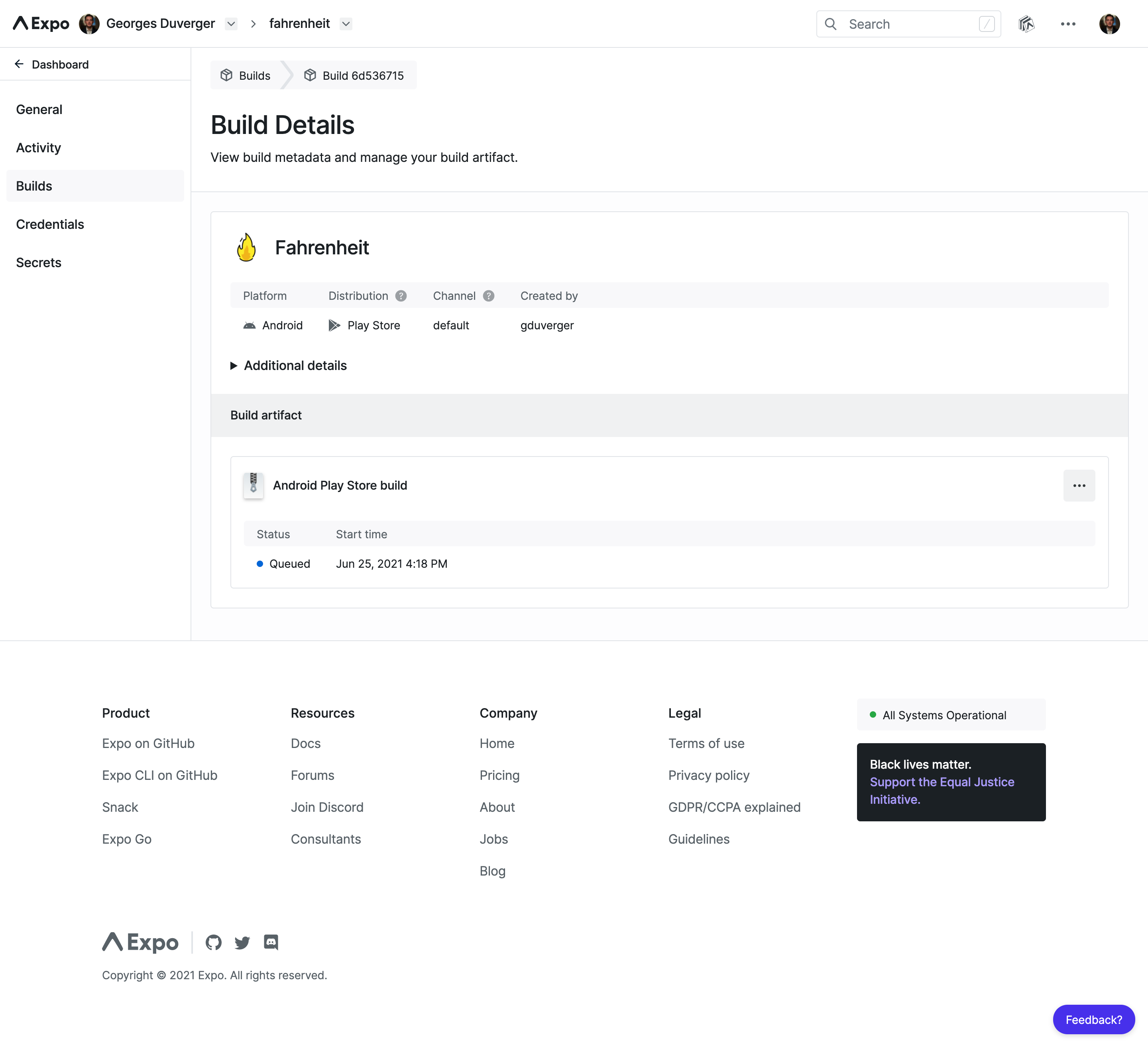
After this process is finished, it will also give you the link to your app. Save this URL. You will need it in the next step.
You can also copy and paste this link in your browser to download your app’s .ipa.
🍎 iOS app: https://expo.io/artifacts/eas/xxxxxxxx.ipaSubmit app to the App Store using EAS CLI
Section titled “Submit app to the App Store using EAS CLI”To submit your app to the App Store, run the below command:
eas submit --platform iosThis command will initially prompt you to login into your Apple account with the same Apple ID. After completing its initial steps, it will prompt:
- What would you like to submit? Select the option
I have a url to the app archive. - And then paste the URL you saved from the previous step.
- Next prompt will be, Your Apple App-specific password. To create an apple app-specific password, in a web browser, sign in to your Apple ID account.
- Go to the Security section and click
Generate Passwordunder App-Specific Passwords. Copy it. - Go back to the terminal window and paste the value to the prompt.
This will take at least 5 to 10 minutes to submit the binary of your app to the Apple App Store. Once the submission process is complete, you will receive an email from Apple.