

Code Editor
The code editor used for Functions and Files is an embed of VSCode. Below are some of the features of the editor that you can use. There’s also options available with a right-click in the editor.
Collapse Functions and Classes
Section titled “Collapse Functions and Classes”To hide function definitions, on the left side of your function name, you’ll see a drop-down arrow. When you click it, it will either collapse or expand your code.
This doesn’t have an impact on your actual code, it just temporarily, visually hides it.
Multiple Selection
Section titled “Multiple Selection”When you want to rename a couple of things without using Find & Replace, you can highlight a word, then press cmd + d or ctrl + d (if you’re on Windows) and it will select multiple versions of that same piece of text. This is useful when renaming the variables of one small function.
Syntax Highlighting
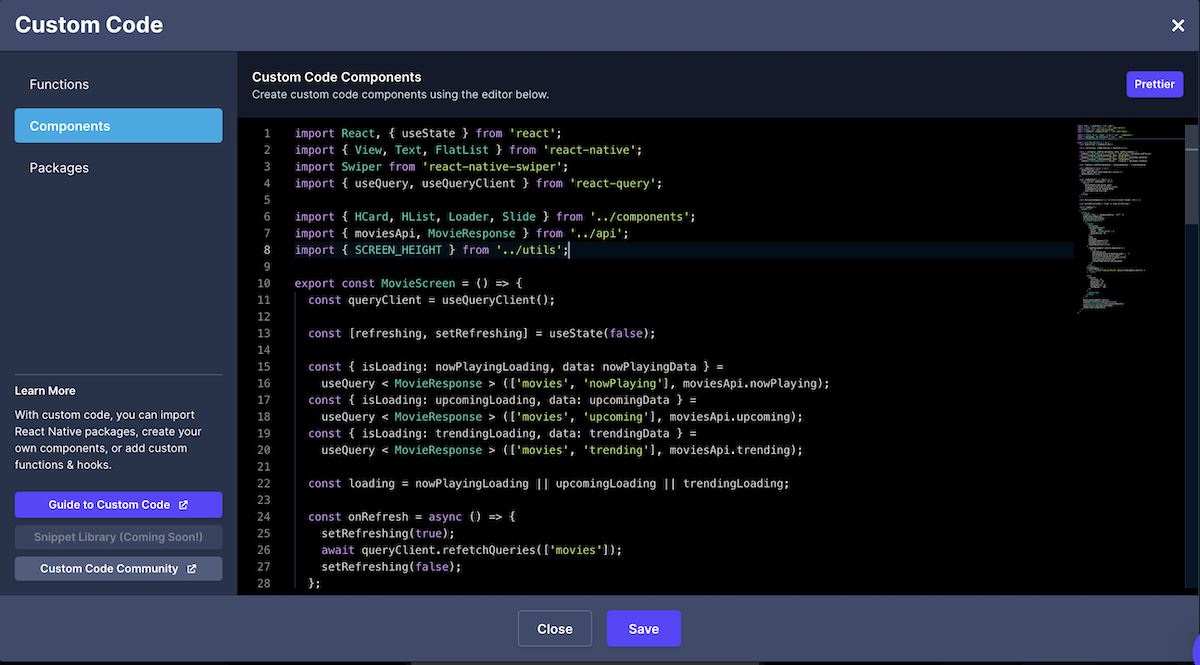
Section titled “Syntax Highlighting”Since we’ve embedded VSCode, you get the benefits of syntax highlighting.
Code Comments
Section titled “Code Comments”You can now press cmd + / or ctrl + / (if you’re on Windows) and it will comment out the block of code for you automatically.
Find & Replace
Section titled “Find & Replace”You can press cmd + f or ctrl + f (if you’re on Windows) and be able to search for or make replacements really easily.
Minimap
Section titled “Minimap”Minimap allows you to jump directly to the Custom Code Component section you need to navigate quickly without having to scroll.
Prettier
Section titled “Prettier”Prettier is a code formatter that is integrated with Draftbit’s Code Editor. To format your Custom Code, all you have to do is press the button that says Prettier on the top right corner of the modal.