

Dashboard Overview
The Dashboard is the main hub in Draftbit. Here you can see your most recent app projects, find out about new features and improvements, explore example apps and screens, watch helpful videos, and more.
Workspaces
Section titled “Workspaces”Workspaces allow you to group apps together and invite other users to work collaboratively on those projects. Workspaces are only available on certain subscription plans.
Starter Apps
Section titled “Starter Apps”If you’re looking to kickstart a new app project, Starter Apps are a great resource. These are pre-built apps that contain many screens with various layouts that are ready for you to customize with your own colors, branding, and styles. Most Screens that available in our Starter Apps are also available to add individually to an existing app as Example Screens.
Example Screens
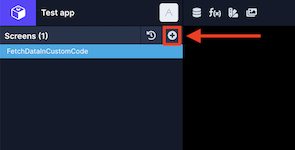
Section titled “Example Screens”Here is where you can preview Example Screens and add them directly to one of your apps. These Example Screens can also be accessed inside of the Builder. To access any of these, click the + button next to Screens panel.
Expert Services
Section titled “Expert Services”Hire our handpicked internal team of designers, developers, and app experts to accelerate your project. We’re available for projects of all sizes, from small tweaks to full app & backend builds.
Expert Projects
Section titled “Expert Projects”Our experts team is an excellent option when you have a specific feature or goal in mind. We’ll quote you a specific price, start date, and timeline, and deliver the outcome on time.
Support and Resources
Section titled “Support and Resources”Our dedicated support team is here to help you with any questions you have about Draftbit. From just getting started to launching your app into the app store, we’re standing by to answer questions via chat, email, or in our community.
Account Settings
Section titled “Account Settings”This tab is where you can manage all of your account and billing settings.
Basic Info
Section titled “Basic Info”| Title | Description |
|---|---|
| Name | The name on the account |
| Device ID (optional) | Your Expo Device ID, found in the Expo app on your phone |
Manage Membership
Section titled “Manage Membership”Here is where you can update or downgrade your plan, view past invoices, and update your payment method. Click the ‘Manage Billing’ button to be taken to the Stripe Portal.
Change Email
Section titled “Change Email”Here is where you can change the email address associated with the account. The email you configure here will be used to log in to your account going forward.
Change Password
Section titled “Change Password”Here is where you can change the password used to log in to your account.
Delete Account
Section titled “Delete Account”Here is where you can delete your account to erase all of your existing apps and data. In order to do this, you must be downgraded to the Free plan. You can do this in the Manage Subscription section.