

Builder Overview
The Draftbit Builder is your workspace for turning app concepts into reality. It combines a Home view, visual editor, live preview, AI agent, code editor, integrations, build configuration, and publishing tools in one place.
To learn more about the different Builder views, follow the links below.
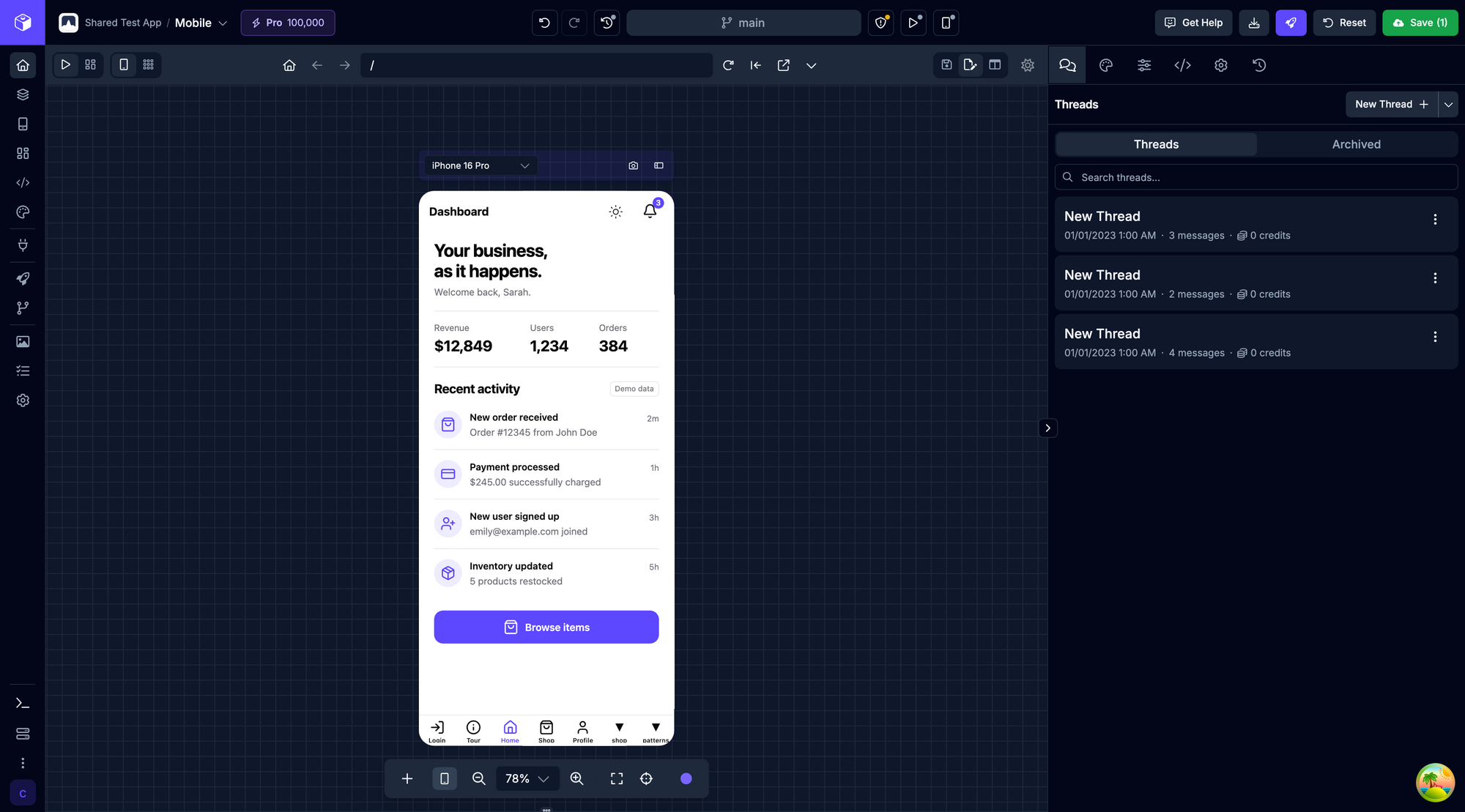
Main Menu
Section titled “Main Menu”You can access the main areas of the Builder from the project navigation on the left side of the Builder. The Home icon opens the default app workspace with the preview, agent, and editor panel available without opening the full screens/components layout. The Draftbit logo above the menu takes you back to your dashboard.
The menu shows what fits the app you have open and your role. Viewers see Home, Preview, and, for API Backend apps, API Docs. Editors and above see the rest, and some items only appear for certain kinds of apps, as noted below. Dividers split the menu into five groups: building the app (Home through Themes & Design), planning it (Briefs, Mockups, and Tasks), Integrations, shipping it (Publishing through History), and managing the app and project (Project Assets and Settings). Project Assets, Tasks, and the Project Settings section of Settings apply to the whole project rather than one app.
The menu shows icons. To see their names, rest the pointer on the menu. It widens over the page to show each item’s name and the group names (Plan, Connect, Ship, and Manage), then closes when you move the pointer away. Pressing Tab to move into the menu opens it too, and Esc closes it. On a touch screen, tap Show labels at the bottom of the menu, then tap an item, Hide labels, or anywhere outside the menu to close it.
| Icon | Action | Description |
|---|---|---|
 | Home | Chat with the agent and preview your app |
 | Preview | Test and preview your app. Shown to Viewers, since Editors preview from Home and the Visual Editor. |
 | Visual Editor | Visually design screens, components, and styles with AI assistance. Apps with a visual frontend only. |
 | Simulator | Preview your app on iOS and Android simulators. Mobile (Expo) apps only. Building simulators needs the Pro plan or above. |
 | Code Editor | Edit your code directly using the built-in editor |
 | Themes & Design | Customize shared theme colors and typography, or import a design to build screens from |
 | Briefs | Read plans, research, and strategy the agent wrote for your app. |
 | Mockups | Compare mockups the agent designs before it changes your app. Not shown for API backends. |
 | Tasks | Track and manage development tasks at the project level |
 | Integrations | Connect APIs, data sources, and MCP servers. The app’s own tabs come first, then the project’s MCPs, which every app in the project shares. |
 | Publishing | Manage app publishing and deployments to web, iOS, and Android |
 | API Docs | Live documentation generated from your API’s OpenAPI spec. API Backend apps only. |
 | History | Restore any saved version on the Versions tab, and download or create backups of your app’s code on the Backups tab |
 | Project Assets | Cloud storage for your images, video, audio and other media files at the project level |
 | Settings | Settings for this app and its project: General (app identity, app configuration, and app actions), Packages and Environment Variables, Variables for apps imported from Classic, Agent defaults, saved prompts, and instructions, and Project Settings |
Workspace Layout
Section titled “Workspace Layout”The Builder remembers how you arrange each app. Panels you collapse, splits you resize, and whether Logs is open stay the same when you reload or come back later. Each app keeps its own layout, so changes in one app don’t affect another. Where you dock Logs (top, bottom, left, or right) is a single setting for all your apps, and Logs remembers its size in each position.
To return the app you have open to the default layout, open the account menu from your avatar and choose Reset layout. The Builder reloads with the default panels and sizes.
Mobile Builder
Section titled “Mobile Builder”On mobile-width screens, the Builder switches from the left project navigation to bottom tabs. The Home view includes Preview, Agent, Editor, and Account. The full Visual Editor also includes a Screens tab for the screens list and component tree.
Tap the tab you’re on again to switch between its views. Screens switches between the Screens and Components lists, Agent switches between your threads and the last thread you opened, and Editor moves to the next editor tab, such as Styles, Properties, or Code. Dots under the tab show how many views it has and which one you’re on.
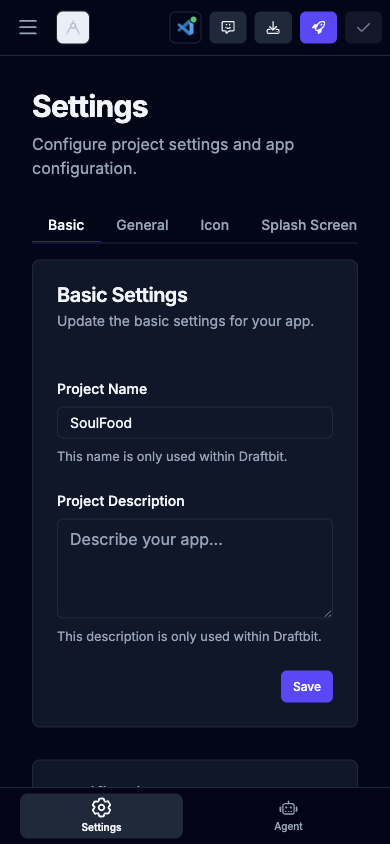
Support Menu
Section titled “Support Menu”The bottom of the left navigation holds the Show labels button, the preview logs toggle, the preview server restart button, the More menu, and your account menu. The More menu holds the full Logs page, plus helpful resources and secondary controls such as What’s New, Roadmap, Docs, Videos, Sandbox Status, and the light/dark theme switcher.
| Icon | Action | Description |
|---|---|---|
 | Show Preview Logs | Open or close the logs panel next to the preview, with build output and errors. Available on larger screens. |
 | Restart Preview Server | Restart the server that runs your app’s preview |
 | More | Additional resources, settings, and sandbox controls |
 | Sandbox Status | View the current sandbox, repository, and preview status for the app |
 | What’s New | View the latest product updates and announcements, without leaving the Builder |
 | Roadmap | View and contribute to the platform roadmap, without leaving the Builder |
 | Docs | Learn about building apps using Draftbit |
 | Videos | Watch video tutorials, office hours, and more |
 | Switch to Light/Dark Mode | Switch between a dark and light Builder UI |
Top Bar
Section titled “Top Bar”The Top Bar runs across the top of the Builder and contains the actions you reach for most often. On smaller screens, some buttons show only their icon, and the middle group of status buttons is hidden. Editing actions, such as Undo / Redo, Recommended Changes, Export, Publish, and Save, need the Editor role or above.
| Icon | Action | Description |
|---|---|---|
 | App Switcher | Switch to any project or app in your workspace. For each project you can also open its dashboard, Supabase page, or Project Settings, or create an app |
 | Billing | Check your remaining credit balance and top up |
 | Undo / Redo | Undo your last unsaved change, or redo one you undid |
 | History | See your five most recent saves, with a link to the full History |
 | Branch | Shows the name of the branch you’re working on. Click it to see the full name. |
 | Recommended Changes | Run checks on your app and fix what they find, or ask the agent to fix it |
 | Live Preview | Open a QR code to preview the running app on a real iOS or Android device using the Draftbit Preview app. Mobile (Expo) apps only. |
 | Simulators | Build iOS or Android simulators of your app. Mobile (Expo) apps on the Pro plan or above; on other plans, the button opens an upgrade prompt. |
 | Platform Alerts | Appears when Draftbit has an active incident or resolved one in the last 12 hours |
 | External Support Needed | Appears when the agent has hit a problem in your app it can’t fix on its own |
 | Get Help | Open the in-app support chat |
 | Migrate | Appears on imported apps that Draftbit recognizes as a framework it supports |
 | Export | Download a zip file of your saved code or commit it to GitHub (Standard plan or above). Unsaved changes aren’t included. |
| | Publish | Open the publish popover with the web, Apple App Store, Google Play Store, and Share options that fit your app |
 | Reset | Discard all unsaved changes. Appears when you have unsaved changes. |
 | Sync | Bring new commits from your repository’s main branch into your working branch. Appears on connected GitHub apps when the main branch has changed. |
 | Save | Review and save your changes as a new save point. Shows a check mark when there’s nothing to save. |
Recommended Changes
Section titled “Recommended Changes”Draftbit checks your app for common problems and shows the result on the shield button in the top bar. A green shield means All checks passing; an amber one means something needs a look. Click it to open the list. Click Recheck at the top of the list to run the checks again, for example after you’ve fixed something.
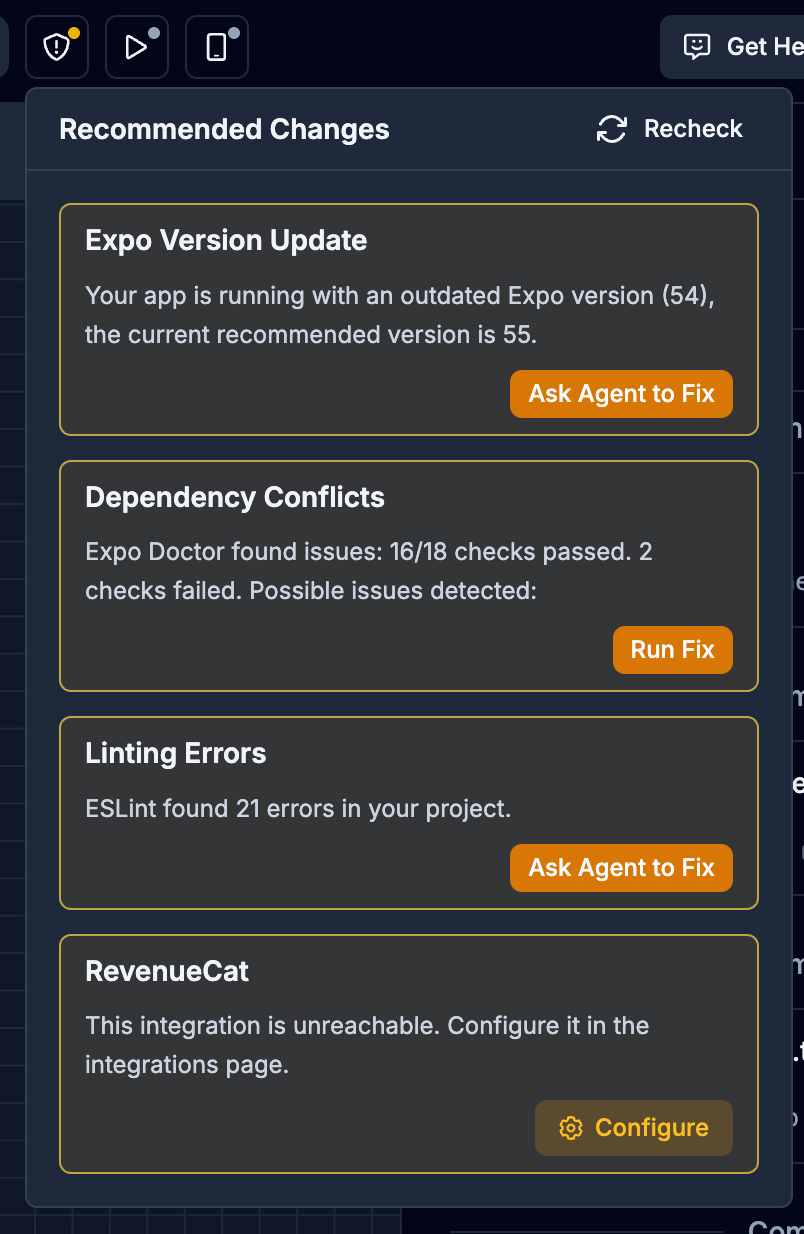
The list can include:
- Expo Version Update
- Missing Entry Point
- Missing Root Layout
- Dependency Conflicts
- TypeScript Errors
- Linting Errors
- Missing Routing Setup
- Publishing Unavailable
- Preview Error, when the preview is running with an error
- An integration from Integrations that needs to be configured, needs verification, or can’t be reached
Each item explains the problem. Click Ask Agent to Fix to start a new agent thread with instructions for the fix, or Run Fix where Draftbit can apply the fix itself. For an integration, click Configure to open the integrations page.
Saving, resetting, and syncing
Section titled “Saving, resetting, and syncing”Every edit you or the agent make is an unsaved change until you save it. While changes are unsaved, the Save button shows how many files changed, and Reset appears next to it.
- Save opens the Save & Commit dialog, where you review the changes and create a save point. If an agent is still working, the dialog warns you that saving now includes its unfinished changes and links to its thread. See Saving Changes.
- Reset lists the changed files and asks you to confirm. Discard Changes reverts every file to your last save. This can’t be undone.
- Undo / Redo steps through your unsaved changes one at a time, so you can back out a single edit without discarding the rest.
When you edit in the Builder, a Syncing changes… notice appears in the lower-right corner while your edits reach your app. If syncing takes a while, the notice says your changes are kept in this browser and offers Options, where you can keep waiting or choose Discard unsynced edits.
To compare your saved and unsaved versions in the preview before you save, see Comparing Builds.
Migrate
Section titled “Migrate”When you import an app that Draftbit recognizes as a framework it supports, a Migrate button appears in the top bar. Migrating unlocks the full feature set for that kind of app, including publishing, previews, and visual editing. Click Migrate, then Migrate app to confirm. The sandbox restarts, then the agent walks you through the migration.
Alerts and support
Section titled “Alerts and support”Two buttons appear on the right side of the top bar only when they have something to tell you:
- Platform Alerts (a bell, or a warning icon for a critical incident) lists active Draftbit incidents, plus any resolved in the last 12 hours.
- External Support Needed (a red warning button) appears when the agent decides your app is in a state it can’t recover from on its own. Choose Hire an Expert to get a Draftbit Expert on it, or Chat with Support.