

Settings
Open Settings with the
icon in the main menu. This page covers its General section; see Packages and Environment Variables for the build sections.
The General section holds everything about one app that isn’t screens or code: its name inside Draftbit, the configuration your built app ships with, a few per-app preferences, and the actions to duplicate, move, or delete the app.
The page opens on the Basic tab. Expo apps also get one tab for each part of their app configuration: General, Icon, Splash Screen, Notifications, iOS, Android, and Web. Other app types only show the Basic settings.
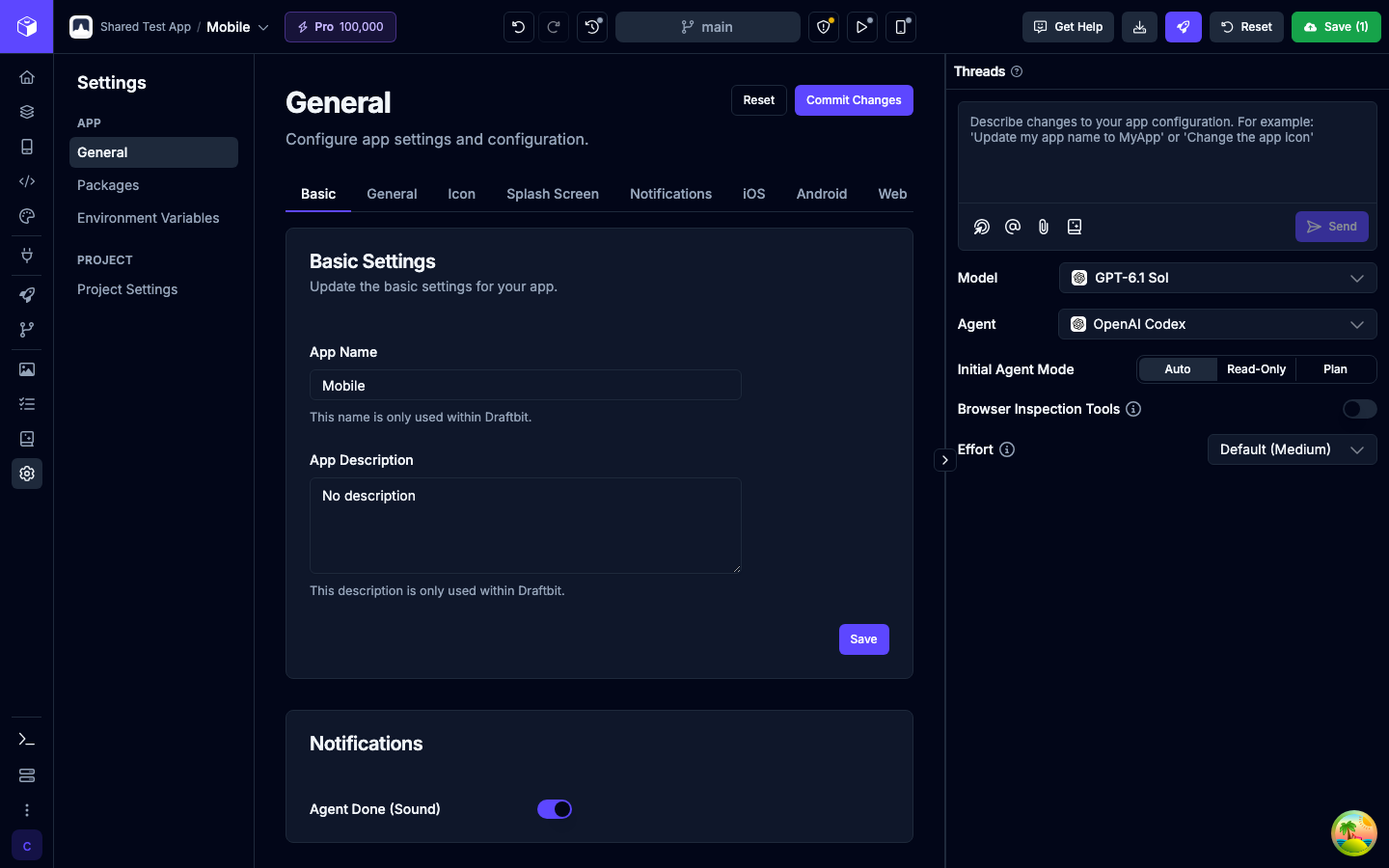
Basic tab
Section titled “Basic tab”Basic Settings
Section titled “Basic Settings”| Setting | Description |
|---|---|
| App Name | The app’s name inside Draftbit, shown on the Projects page and in the Builder. |
| App Description | An optional description, also only used inside Draftbit. |
Click Save to apply your changes.
The icon for the whole project is set under Settings › Project Settings, not here. You can upload a .png that’s exactly 1024x1024px, or click the refresh button next to the icon (Generate a new icon) to have Draftbit make one from your first app’s name and description. Editors and above can generate a new icon a limited number of times per day. To use that icon in your built app, turn on Use Project Icon on the Icon tab.
Notifications
Section titled “Notifications”| Setting | Description |
|---|---|
| Agent Done (Sound) | Play a sound when the AI agent finishes a task in this app. This preference is saved in your current browser. |
Publish Menu
Section titled “Publish Menu”Choose what the Publish menu shows. Turn off the options you don’t use, so you can’t start one of them by accident.
| Setting | Description |
|---|---|
| Progressive Web App | Turn off to hide web publishing from the Publish menu and from Publish this version on the Versions tab. |
| Apple App Store | Turn off to hide App Store publishing from the same places. |
| Google Play Store | Turn off to hide Google Play publishing from the same places. |
| Simulators | Turn off to hide the iOS and Android simulator builds from the Publish menu. You can still build them from the simulator button in the top bar. |
| Test Builds | Turn off to hide iOS and Android test builds from the Publish menu and the Versions tab. You can still start them from the Publishing page. |
Anything you already published stays live. To unpublish your web app, turn web publishing back on first. While an option is off, the Publish menu shows a link back to this setting. This section is only shown for Expo apps.
Component Library
Section titled “Component Library”Expo apps come with a set of ready-made UI components in components/ui/, so the AI agent has building blocks to work with from the start. Draftbit adds them back whenever your app starts up, which is why deleting them on their own doesn’t make them stay gone.
| Setting | Description |
|---|---|
| Add starter UI components | Turn off to stop Draftbit from adding the ready-made UI components to your project. Components already in your project stay in place, so delete the ones you don’t want after you turn this off. |
This section is only shown for Expo apps.
Device Preview Deep Links
Section titled “Device Preview Deep Links”Expo apps get an app/+native-intent.tsx file that makes device previews more seamless. When you open your app in a Draftbit preview app, it stops your app from handling the link that opened it, so your app starts on its normal first screen. Draftbit writes this file again whenever your app starts, replacing any changes you made to it.
| Setting | Description |
|---|---|
| Add Draftbit native intent file | Turn off to stop Draftbit from writing its version of app/+native-intent.tsx, so you can use your own. The current file stays in place, so you can edit or replace it. |
This section is only shown for Expo apps.
Duplicate App
Section titled “Duplicate App”Click Duplicate App to make a copy of the app, with all its settings and content, in the same project. The copy has the same name with “(Copy)” at the end.
If the app uses a Supabase project managed by Draftbit, the copy is linked to its own new Supabase project, separate from the original. Its database, auth users, and storage start empty. If the app uses a Cloudflare D1 database, the copy gets its own new, empty D1 database. In both cases nothing is copied from the original backend, and you may need to update environment variables or code that point to it after duplicating. Draftbit warns you about this before it makes the copy.
Supabase Backend apps can’t be duplicated, so this section doesn’t appear for them.
Move App
Section titled “Move App”Click Move App to move the app to a different project. Pick the Target Project (projects are grouped by workspace), type the app’s name to confirm, and click Move App.
- Only the owner of the app’s current workspace sees this section.
- You can move the app to a project in another workspace if you’re an Editor or above there.
- If the target project already has an app with the same name, the moved app gets a number added to the end of its name.
- The app’s own skill settings are cleared when it moves.
- You can’t move an app that has local MCP servers installed, or one that owns a managed Supabase resource. Uninstall the MCP servers, or delete or detach the Supabase resource, then try again.
- You can’t move an app into a project that already holds as many apps as its workspace’s plan allows. Delete an app there or upgrade first.
To move a whole project to another workspace instead, use Move Project under Settings › Project Settings. The other workspace’s plan has to allow as many apps per project as the project has, or Draftbit asks you to upgrade that workspace first.
Delete App
Section titled “Delete App”Click Delete App, type the app’s name to confirm, and click Delete. Once you delete an app, there’s no going back.
App configuration tabs
Section titled “App configuration tabs”The other tabs edit your Expo app’s configuration file, app.config.js (or app.config.ts). This file sets the app name, version, icons, splash screen, bundle identifier, package name, permissions, plugins, and more. Preview builds, one-click publishing, and code export all use it.
Each tab has a short list of everyday fields, then up to two collapsed sections:
- Advanced: fields you rarely change by hand, such as Version, Build Number, and Version Code. Some of them show “This value may be overridden during Draftbit Publishing” because publishing sets them for you.
- Dangerous: fields such as Platforms and JavaScript Engine. Changing these properties may break your ability to preview the app in Draftbit, so leave them alone unless you know you need the change.
See App Configuration for every field on every tab.
Saving and committing changes
Section titled “Saving and committing changes”Changes on the configuration tabs save automatically a moment after you stop typing. While they save, the top of the page shows Saving…, then Saved. If a save fails, you’ll see Save failed with a Retry link.
Saved configuration changes are unsaved changes to your app, like an edit from the AI agent. While the configuration has changes that aren’t part of your saved version, two buttons appear at the top of the page:
- Commit Changes checks every field for errors, then opens a dialog with the commit message filled in as “Update app configuration”. Edit the message if you like and click Commit to add the configuration file to your saved version.. Other unsaved changes in your app stay unsaved.
- Reset throws away the configuration changes and goes back to the configuration in your saved version.
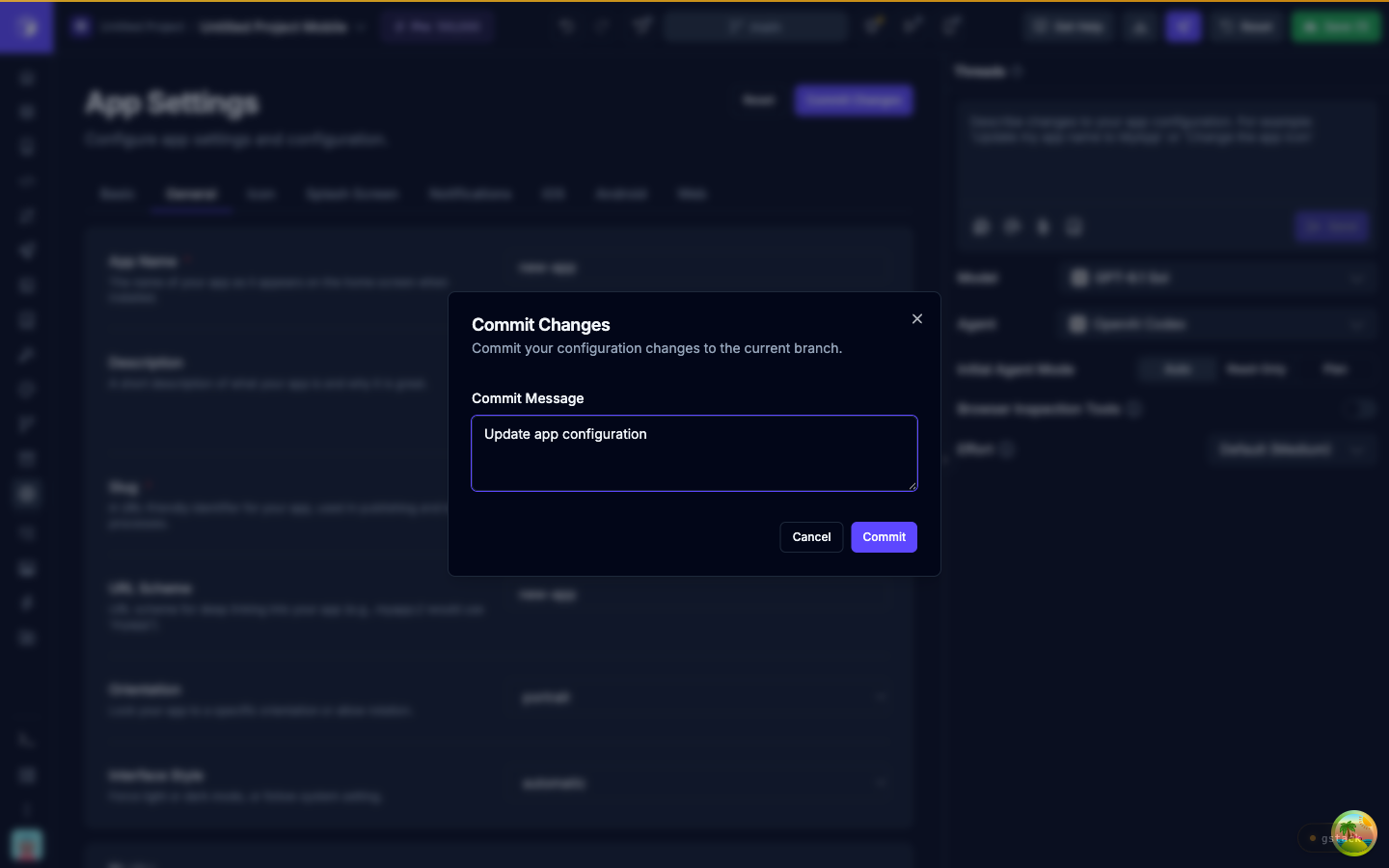
You can also include configuration changes in a regular save from the top bar. Publishing builds from your saved version, so commit or save configuration changes before you publish.
App Config Agent
Section titled “App Config Agent”On Expo apps, the right side of Settings › General has an App Config Agent chat. Describe the change you want, such as “Update my app name to MyApp” or “Change the app icon”, and the agent edits your configuration file for you. It’s a good fit for fields that are fiddly to fill in by hand, like Privacy Manifests or Plugins.
The agent only works on app configuration. For anything else, start a new request from the Builder.
On small screens, switch between the settings and the agent with the Settings and Agent tabs.