

Setting up custom SMTP for auth emails
Your app sends emails for sign-up confirmation, password resets and magic links. By default, these use Supabase’s built-in email service, which is only meant for testing: it allows 2 emails per hour. Once real users start signing up, they may see “Please wait a little before trying again” or not get their emails at all.
To fix this, connect your own email provider (SMTP) before you launch. You can do this yourself in Draftbit.
Step 1: Get your SMTP details
Section titled “Step 1: Get your SMTP details”Sign up with an email provider such as Resend, SendGrid, Postmark or Amazon SES, and verify your domain there. Verifying your domain helps your emails reach the inbox instead of spam.
For example, with Resend:
| Field in Draftbit | Value for Resend |
|---|---|
| Sender Email | An address on your verified domain, for example hello@yourapp.com |
| Sender Name | The name users see in their inbox, for example your app’s name |
| SMTP Host | smtp.resend.com |
| SMTP Port | 465 |
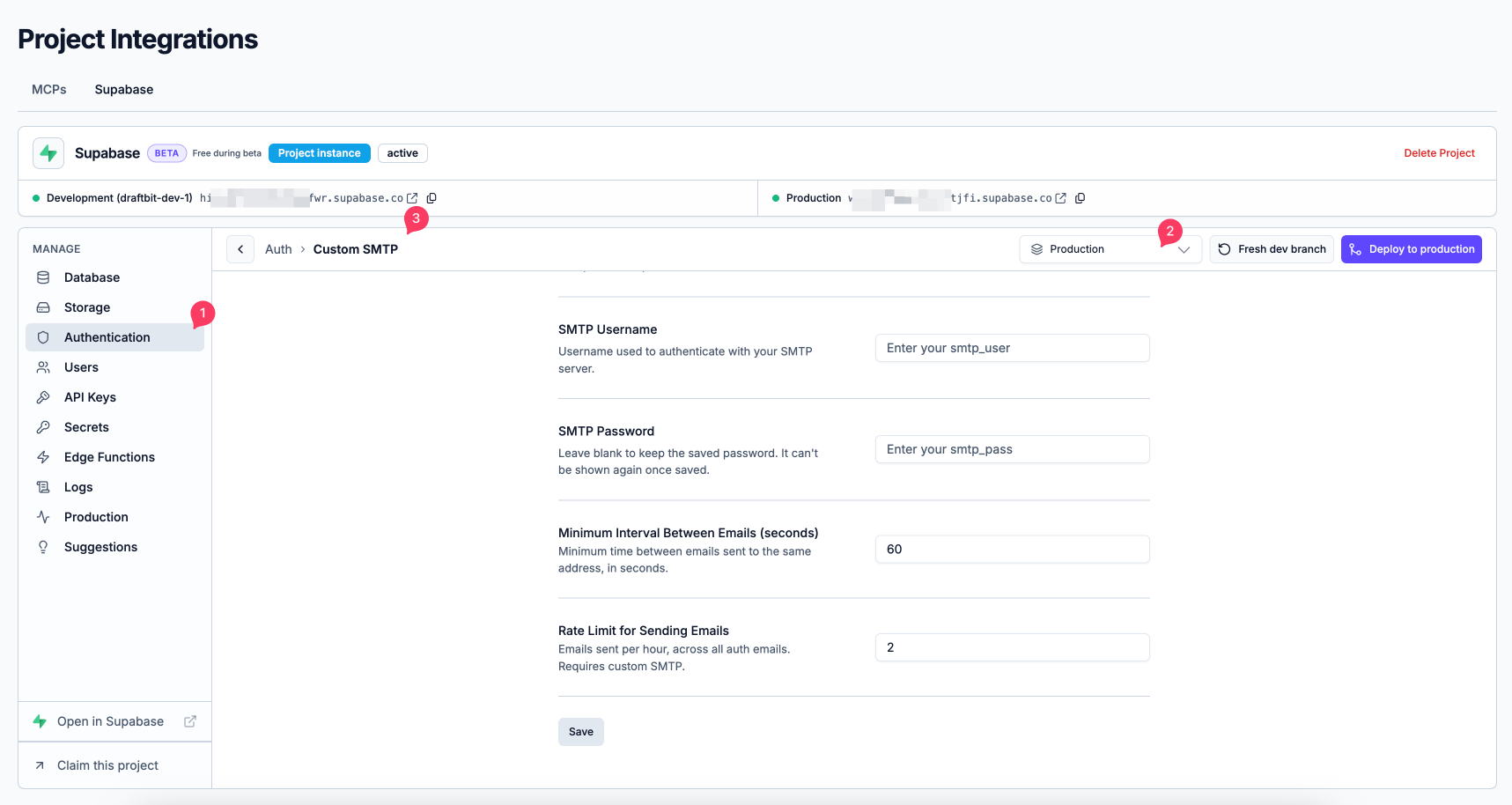
| SMTP Username | resend |
| SMTP Password | Your Resend API key |
Step 2: Add them in Draftbit
Section titled “Step 2: Add them in Draftbit”- Open the Supabase panel from Project Integrations → Supabase, or see Opening the Supabase panel for other routes.
- In the environment dropdown (top right), choose the environment to set up, usually Production.
- Go to Authentication and, under Emails, open Custom SMTP.
- Fill in your SMTP details. The password is stored securely and can’t be shown again after you save. To keep it when editing other fields, leave the password field blank.
- Click Save.
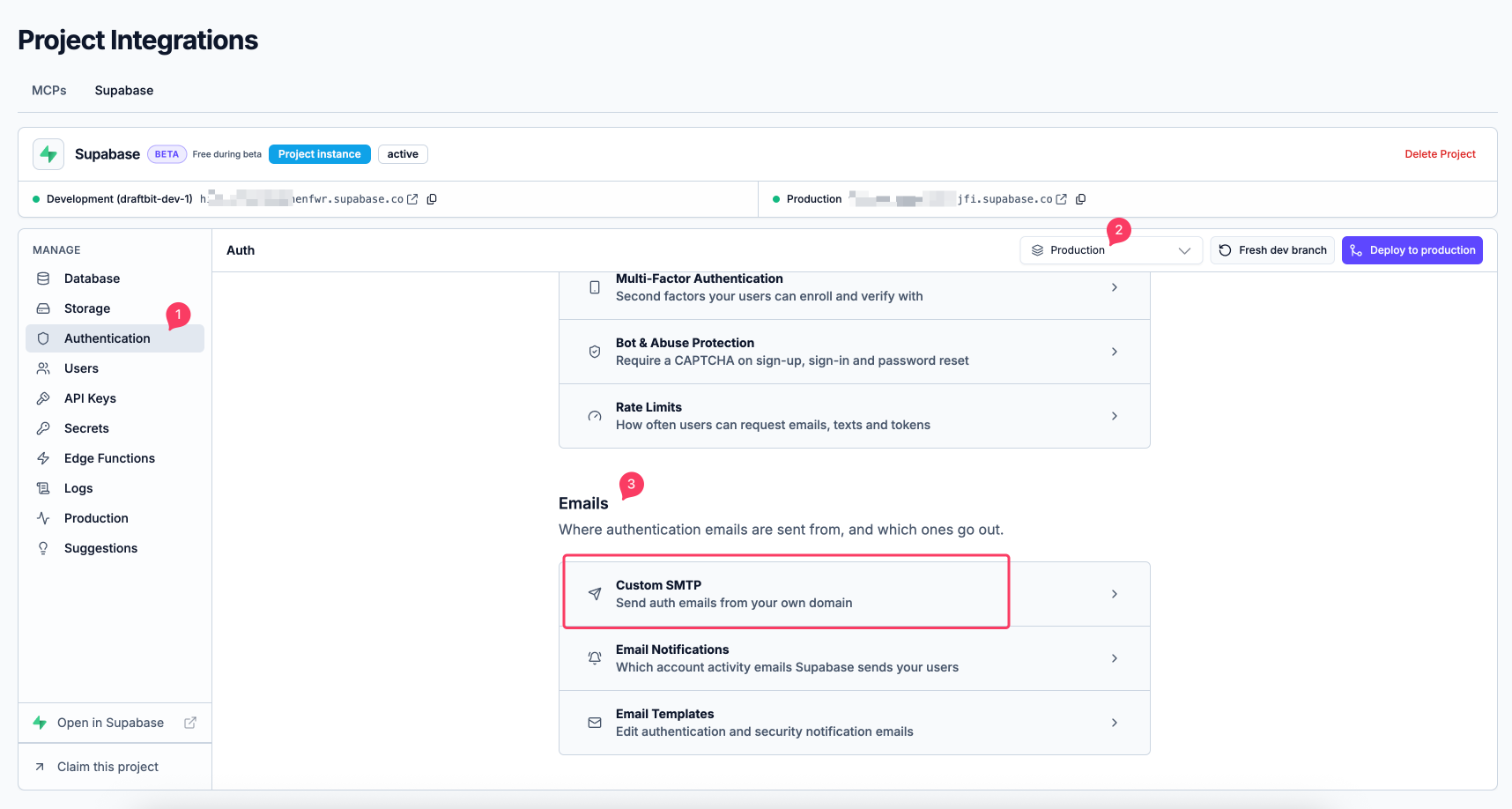
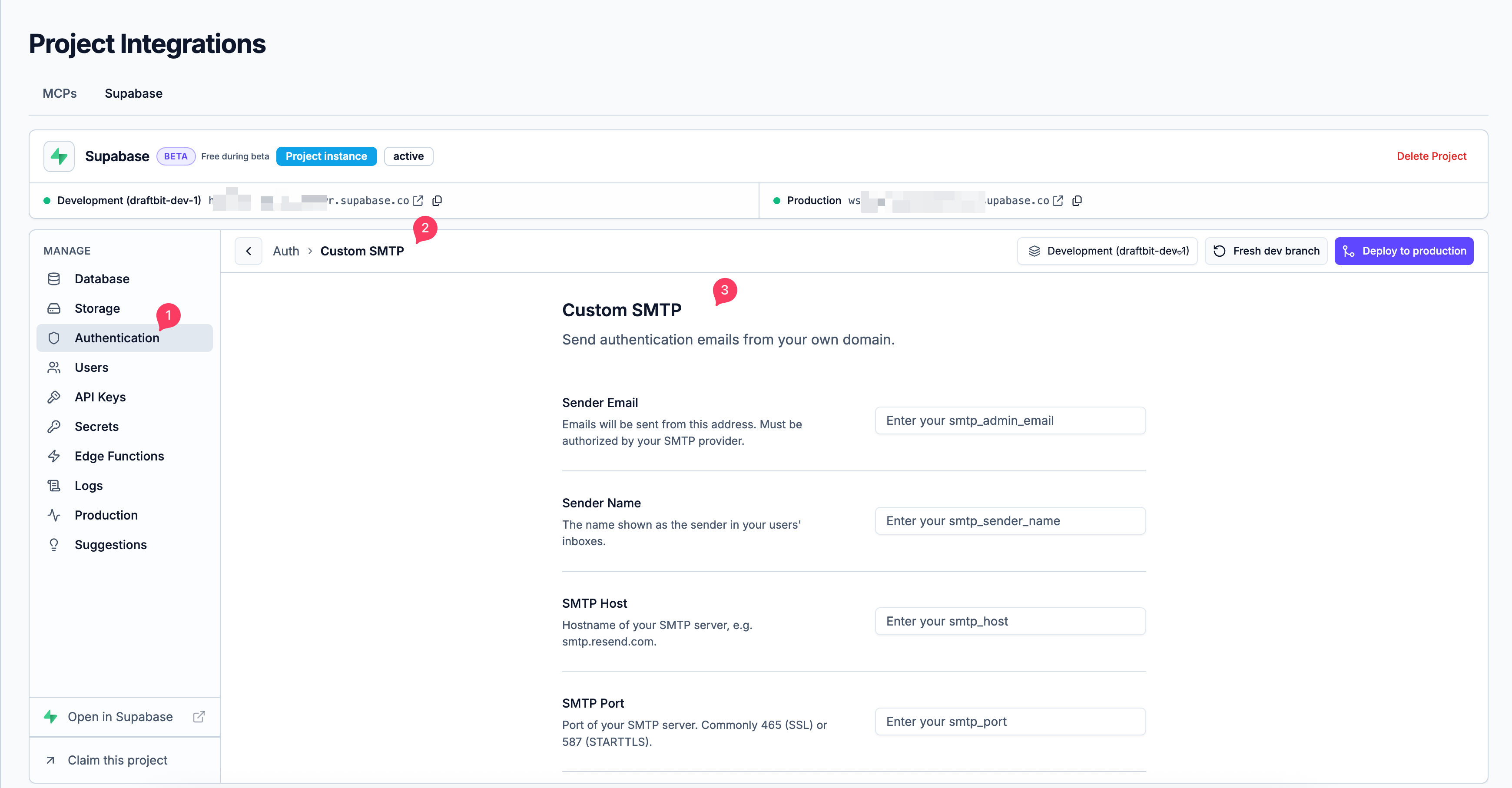
When you save Custom SMTP in Development or Staging, Draftbit also saves it to Production, so your live app sends from your domain. Saving it with Production selected changes Production only.
Step 3: Raise your email limits
Section titled “Step 3: Raise your email limits”On the same page, adjust:
- Rate Limit for Sending Emails: how many auth emails can be sent per hour in total. The default of 2 is too low for real users, so set it to match your expected sign-ups. This setting requires custom SMTP.
- Minimum Interval Between Emails: the minimum time between emails to the same address (60 seconds by default). This prevents users from requesting too many emails at once.
Step 4: Test it
Section titled “Step 4: Test it”Sign up with a new email address and request a password reset. Check that both emails arrive and that the links open your app. If they don’t arrive, check your spam folder and your provider’s logs.
Testing without emails
Section titled “Testing without emails”New projects start with Confirm email turned off under Authentication, so no confirmation emails are sent while you test and you won’t hit the limit.
If your project shows Deploy to production at the top of the Supabase panel, each deploy copies this setting from Development to Production. Turn it on in Development before you deploy if you want new users in your live app to verify their email.
For the full launch checklist, see Connecting your app to Production with managed Supabase.