

Billing
Your plan, credits, and payments belong to your organization, not to you personally. Everyone in the organization shares them. Select Billing in the sidebar to open the Billing Overview. The pages under it are:
- Plan: compare plans, change your plan, add editor seats, and add a monthly credit package.
- Credits: your credit balance and where each batch of credits came from. See Credits.
- Usage: how your organization is spending credits. See Checking your balance and usage.
Who can do what
Section titled “Who can do what”Anyone in the organization can open the billing pages. Changing anything takes the Owner or an Admin:
| Action | Owner | Admin |
|---|---|---|
| Upgrade from the Free plan | Yes | No |
| Change a paid plan, its seats, or its credit package | Yes | Yes |
| Cancel a paid plan or a pending change | Yes | Yes |
| Buy credits | Yes | Yes |
| Open Invoices & Payments to manage payment details | Yes | Yes |
See Team and seats for everything each role can do.
Opening a billing link
Section titled “Opening a billing link”A billing link can select a workspace and open an upgrade dialog, the Buy Credits dialog, or the Auto Top-Up settings. You must be signed in to an account that belongs to that workspace. If the link is unavailable, check your signed-in account or open Billing from your workspace menu.
A checkout link for a Free workspace takes its Owner to Stripe with the requested plan and monthly billing selected. These links include the plan’s credits; links for exhausted credits also select the 5,000-credit monthly package. Review the price at checkout before paying. Other members see a message asking them to contact the Owner. If the workspace has a past-due payment, resolve that payment before upgrading.
Billing Overview
Section titled “Billing Overview”The overview has two cards.
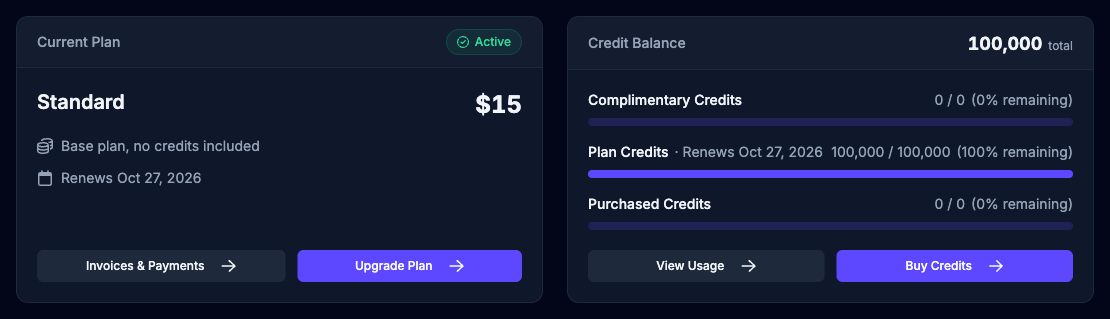
Current Plan shows your plan, what you pay, and a status:
| Status | What it means |
|---|---|
| Free | You’re on the Free plan. |
| Active | Your paid plan is in good standing. |
| Overdue | A payment is past due. Update your payment method. |
| Payment Failed | Your subscription isn’t active because of a payment problem. |
| Draftbit managed | Draftbit manages your plan for you. Contact Draftbit to change it. |
Below the price, the card lists the credits your plan adds, any additional seats, and the date your plan renews. If you’ve canceled, it shows the date your subscription ends instead. Select Invoices & Payments to manage payments, or Upgrade Plan to go to the Plan page.
Credit Balance shows your total balance and how much is left in each group: Complimentary Credits, Plan Credits, and Purchased Credits. Select View Usage to see where credits went, or Buy Credits to add more. Credits explains each group.
Choosing a plan
Section titled “Choosing a plan”Select Billing > Plan in the sidebar. The page shows a card for Free, Standard, and Pro, a Compare plans table with every feature by plan, and answers to common billing questions. For Enterprise, select Explore Enterprise.
Each paid plan card has these options:
- Annual: turn on to pay yearly. The card shows how much you save.
- Additional editor seats: seats beyond the one included with the plan. See Editor seats.
- Add monthly credits: add a credit package to your plan. Pick an amount from the Credit package menu, or select Remove credits to take it off. See Monthly credit packages.
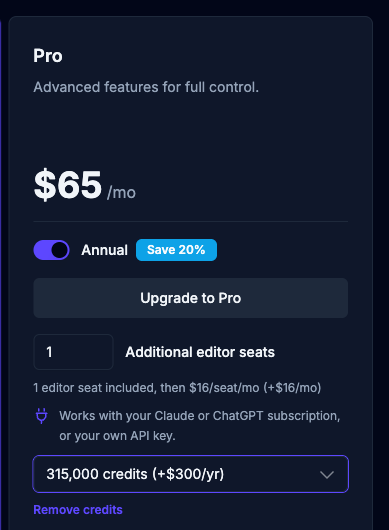
Paid plans run on your Claude or ChatGPT subscription or your own API key, so you don’t need a credit package to use them. If you’re on Free and use Draftbit credits rather than your own AI, the Standard and Pro cards start with the 5,000-credit package selected. The card price updates as you change these options, and the choices carry across all cards so you can compare plans side by side.
Upgrading from Free
Section titled “Upgrading from Free”Only the Owner can upgrade from the Free plan.
- On the Plan page, set the options you want on the Standard or Pro card.
- Select Upgrade to Standard or Upgrade to Pro.
- Enter your payment details at checkout. You come back to the Plan page when you’re done, and your new plan starts right away.
Changing your plan
Section titled “Changing your plan”The Owner or an Admin can change a paid plan:
- On the Plan page, pick a different plan, or change Annual, Additional editor seats, or the credit package on your current plan.
- Select Upgrade to or Downgrade to the plan you picked, or Update Plan if you changed your current plan’s options.
- Review the summary. It compares your current and new monthly rate, shows what’s due now, and shows your next billing date.
- Select Upgrade Now or Confirm Change.
When changes take effect
Section titled “When changes take effect”| Change | Takes effect |
|---|---|
| A higher plan, more seats, a bigger credit package, switching from monthly to annual billing, or switching from annual to monthly on the same plan | Right away. You pay a prorated amount now, with credit for unused time on your current plan, and a new billing period starts that day. |
| A lower plan, fewer seats, or a smaller credit package | At the end of your current billing period. You keep your current plan until then. |
| Cancel (downgrade to Free) | At the end of your current billing period. |
A bigger credit package is charged in full right away rather than prorated.
When a change is scheduled, the Plan page and the Billing Overview show a Pending Subscription Change banner with the new plan and the date it starts. You can’t make another change while one is pending. Select Cancel Change to keep your current plan, then make a different change.
Canceling your plan
Section titled “Canceling your plan”To cancel, select Downgrade to Free on the Free card. You’re first asked why you’re downgrading. Answering is optional: pick a reason, add a comment if you like, and select Continue, or select Skip. Then review the summary and select Confirm Change. Your paid plan stays active until the end of the billing period, and the Billing Overview shows the date it ends.
Until then, a Subscription Scheduled to Cancel banner appears. Select Keep Subscription if you change your mind.
When the Free plan starts, your projects and apps stay in your account. Features above the Free plan lock until you upgrade again, and you can’t create projects or apps beyond the Free plan’s limits.
If you’re on a previous plan
Section titled “If you’re on a previous plan”If you signed up under earlier pricing, the Plan page shows Your current plan isn’t listed below, with your current price and credits. You can keep that plan as it is, or choose a current plan to replace it.
Payments and invoices
Section titled “Payments and invoices”Select Invoices & Payments on the Billing Overview, Manage Payment & Invoices at the top of any billing page, or Manage Plan on your current plan’s card. Each one opens your organization’s billing portal, hosted by Stripe, where you can update your payment method and see your invoices and payment history.
Draftbit accepts Visa, Mastercard, and American Express. Prices are in US dollars. Enterprise customers can arrange to pay by invoice.
If a payment fails
Section titled “If a payment fails”If a renewal payment doesn’t go through, your plan’s paid features turn off until it’s paid, and the Current Plan status changes to Overdue. A banner at the top of the dashboard and the app editor says the payment failed and shows the amount due. If you try a paid feature in the meantime, you see the same message instead of an offer to upgrade.
The Owner or an Admin can fix it from the banner:
- Update payment method opens your billing portal. Add a working card, and we retry the charge automatically.
- Pay opens the invoice in a new tab so you can pay it right away. Your paid features come back as soon as the payment goes through.
Other members see the banner too, but only the Owner or an Admin can pay. You can’t buy credits until your subscription is active again.
Enterprise
Section titled “Enterprise”Enterprise adds custom credit allocations, unlimited editor seats and concurrent agents, SSO, and invoice billing. Enterprise is priced annually for your organization. Select Explore Enterprise on the Plan page to see what’s included, then Book a meeting or Contact Sales.