

REST and GraphQL APIs
If your app needs data from a service you already use, you can connect its REST or GraphQL API in Integrations. Draftbit sends a real request to each endpoint, records the shape of the JSON it gets back, and adds the endpoints that pass to a typed file in your app. Your code calls them with draftbitApi.call, and the agent uses the same endpoints when it builds your screens.
Where to find it
Section titled “Where to find it”Open Integrations in the main menu, then choose the REST APIs or GraphQL tab. You need the Editor role or higher.
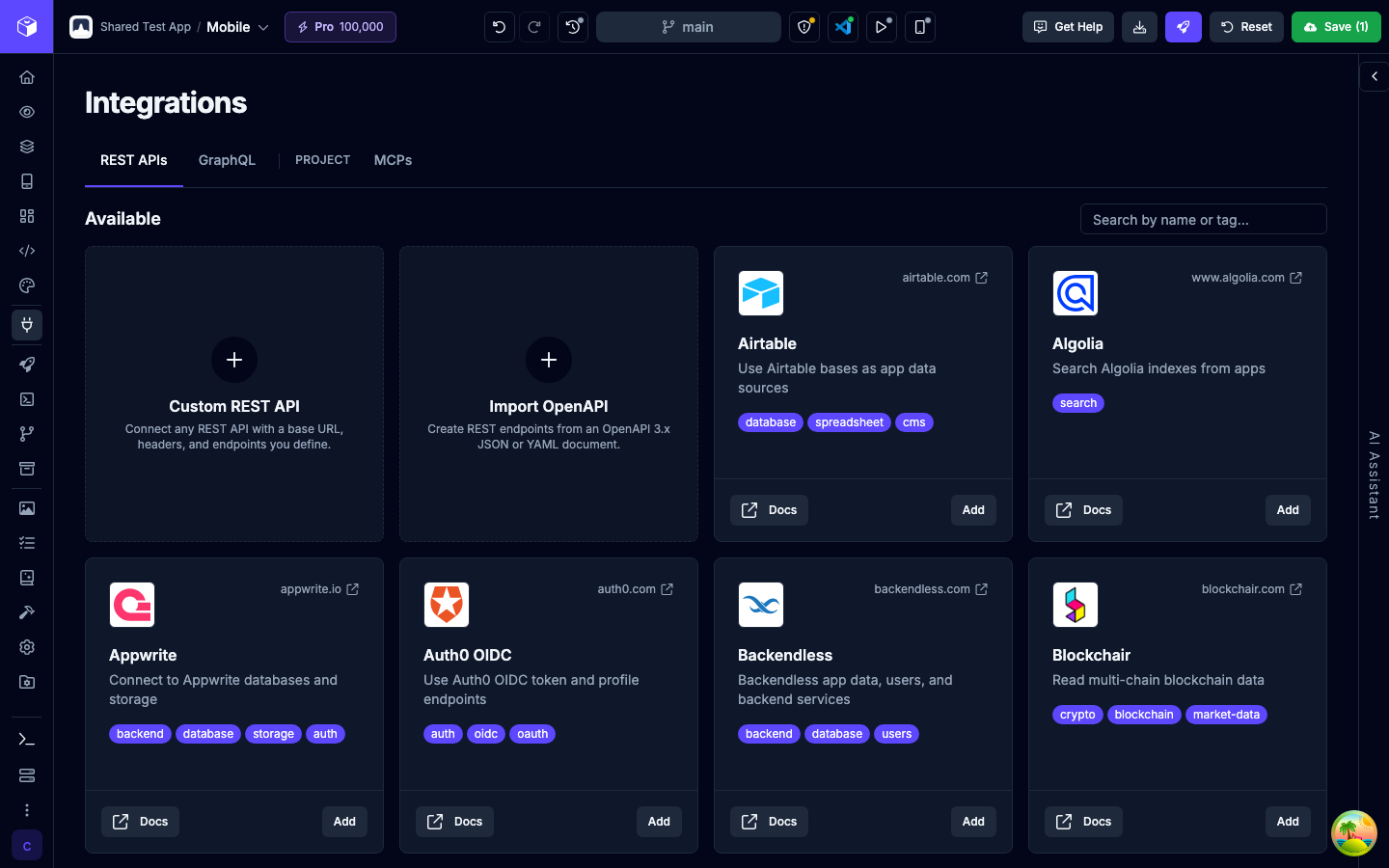
Each tab has two sections:
- Configured lists the services in this app. Each card shows how many of its endpoints are verified, for example
3/4 verified. Use the switch on a card to turn a service off without deleting it, or open its menu to Edit service details or remove it. - Available lists services you can add. Use Search by name or tag… to filter it.
The Integrations Agent panel sits next to the tabs (on a phone, switch to Assistant). Describe what you want, such as “Add a REST integration for our orders API”, and it can add the service and endpoints for you.
Adding a REST service
Section titled “Adding a REST service”There are three ways to add a REST service.
From the catalog
Section titled “From the catalog”The Available section includes preconfigured services such as Supabase, Webflow, WordPress, Xano, and Contentful. Click Add on a card, fill in the Credentials the service asks for, and click Add service. If the base URL contains a placeholder such as {project}, replace it with your own value. The card says Add another if the service is already in your app.
Custom REST API
Section titled “Custom REST API”Click Custom REST API and fill in:
| Field | Description |
|---|---|
| Name | A name for the service, such as Orders API. |
| Base URL | The root URL every endpoint path is added to, such as https://api.example.com/v1. It must use https. |
| Description | Optional. What the service is for. |
| Shared Headers | Headers sent with every endpoint in the service, such as Authorization. Click Add Header for each one. |
Click Add service, then open the service to add endpoints.
Import OpenAPI
Section titled “Import OpenAPI”If the API publishes an OpenAPI document, click Import OpenAPI. Enter the OpenAPI URL of an OpenAPI 3.x document in JSON or YAML, and optionally a Name Override, then click Import Spec. Draftbit creates one endpoint for each operation in the document, with its query parameters and header parameters. The first server URL in the document becomes the base URL.
To pick up changes to the spec later, open the service’s menu, choose Edit service details, and click Re-import. Re-importing replaces the service’s endpoints with the ones in the current spec, so endpoints you added or edited by hand are replaced too. Endpoints whose method and path didn’t change keep their code key, but every endpoint needs a new test before it’s Runtime Ready again.
Adding a GraphQL service
Section titled “Adding a GraphQL service”On the GraphQL tab, add a service from the catalog (for example Hasura, Supabase GraphQL, Shopify Storefront, or Hygraph) or click Import GraphQL. For an import, enter a Name, the Endpoint URL, an optional Description, and any Shared Headers, then click Import Schema. Draftbit reads the schema and creates one operation for each query and mutation.
Open the service to work with its operations. They’re grouped into Queries, Mutations, and Subscriptions, and you can filter them with Search operations. Each operation has:
- Generated document, the GraphQL document Draftbit sends. You can edit it, and Reset to default restores the version built from the schema.
- Variables schema, the variables the operation accepts.
- Variables (JSON), the values used when you test it.
To add an operation the schema doesn’t generate, click Add above the operation list and enter a Display name, Type, Operation name, and Document.
When the schema changes, open Edit service details and click Re-introspect Schema. Your custom operations are kept. An operation that’s no longer in the schema stays in the list with a notice so your code doesn’t break without warning. Delete it once you’ve updated any code that calls it.
Setting up a REST endpoint
Section titled “Setting up a REST endpoint”Open a REST service to see its endpoints on the left, the endpoint’s settings in the middle, and the Response panel on the right. On a phone, switch between them with Endpoints, Config, and Response.
Click Add to create an endpoint, fill in its settings, and click Save.
| Setting | Description |
|---|---|
| Endpoint name | A short name, such as getOrder. |
| Method | The HTTP method. |
| Path | The path after the base URL. Use braces for path parameters, such as /orders/{id}. |
| Headers | Headers for this endpoint only. Shared headers from the service are sent as well. |
| Query params | Each has a Name, a Value, and a Required switch. |
| Request body | Choose a Content-Type and write a Body template, such as { "name": "Jane" }. |
| Test values | Sample values for placeholders, used only when you test. |
Placeholders and test values
Section titled “Placeholders and test values”A placeholder is a value your code fills in each time it calls the endpoint. Write path parameters in braces (/orders/{id}), and placeholders anywhere else in double braces ({{status}}).
Before you can test an endpoint that has placeholders, add a test value for each one. The test value’s Name must match the placeholder exactly. If one is missing, the endpoint shows a notice with a button for each missing name. Click it to add that test value.
Testing an endpoint
Section titled “Testing an endpoint”Testing sends a real request from your app’s sandbox, so the sandbox needs to be running. Click Test in the Response panel. The result shows:
- Body, a sample of the response.
- Inferred schema, the response shape Draftbit worked out from the body. Your app code’s types come from it.
- Headers, the response headers.
Save the endpoint before you test it. If you test unsaved changes, you’ll see the response, but nothing is recorded. Save, then test again to update the endpoint’s status. GraphQL operations work the same way: save the document, then click Test.
Runtime Ready and Builder only
Section titled “Runtime Ready and Builder only”Every saved endpoint and operation shows a status at the top of its settings:
- Runtime Ready ·
draftbitApi.call("<key>", …)means it’s in your app’s generated API file. The text shows the code key to call it with. - Builder only · <reason> means it isn’t in the generated file yet, and the reason says why.
In a REST service’s endpoint list, the dot next to each endpoint shows the same status in the matching color.
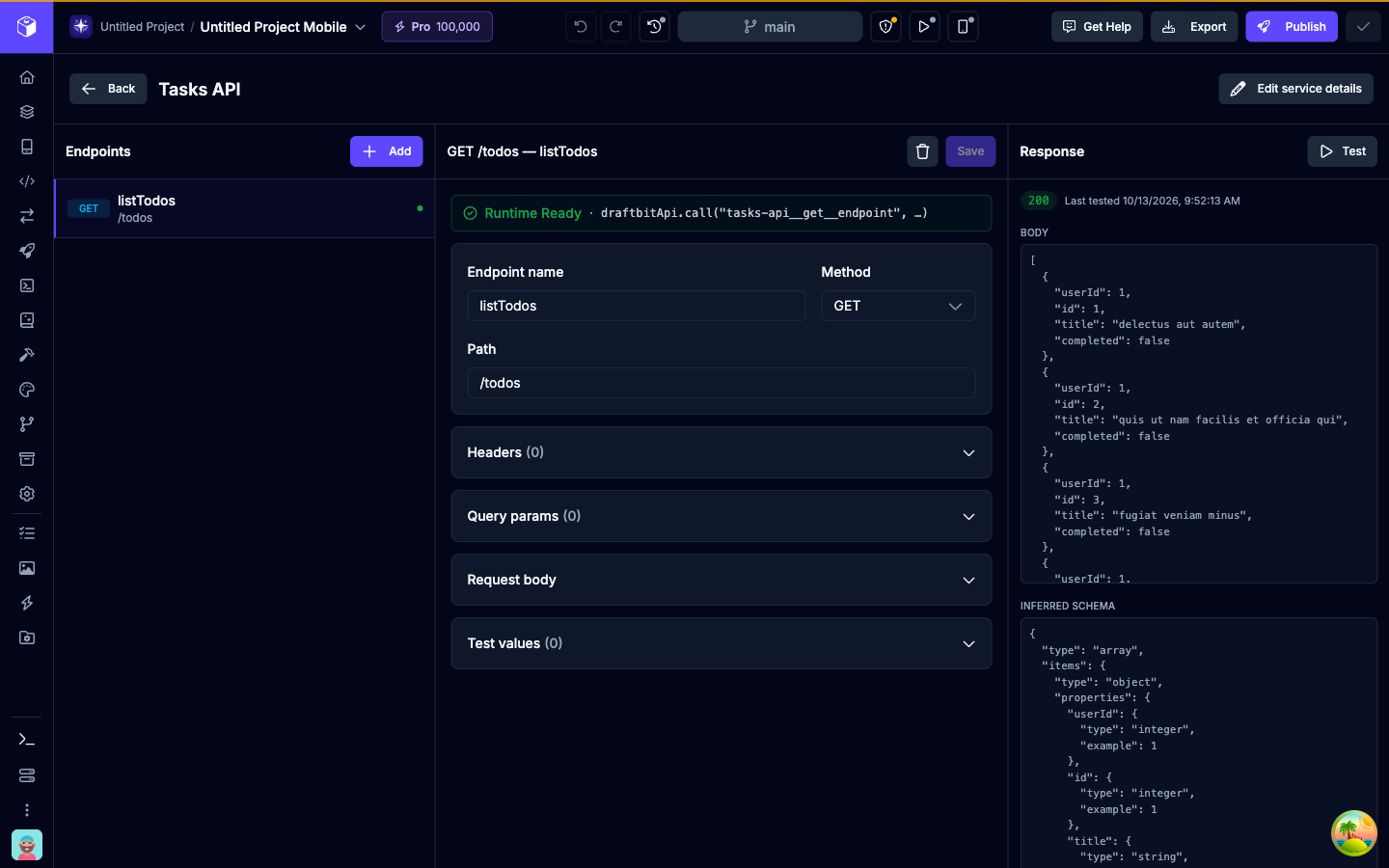
An endpoint is Runtime Ready when all of these are true:
- Its last test returned a 2xx JSON response, so Draftbit could infer a response schema.
- In a mobile app, web app, or website, no fixed header value holds a secret key. See Headers and secrets.
- Every header that uses an environment variable points to a Plain text variable that has your app’s public prefix and is active in Development. See Headers and secrets.
- No header value contains a placeholder.
- Each query parameter value is empty, a fixed value, or a single placeholder such as
{{status}}. Values that mix text and placeholders, such asstatus-{{status}}, aren’t supported. - Its code key isn’t used by any other endpoint in the app.
- Its service is turned on.
For GraphQL, subscriptions can’t be Runtime Ready.
Fixing a Builder only endpoint
Section titled “Fixing a Builder only endpoint”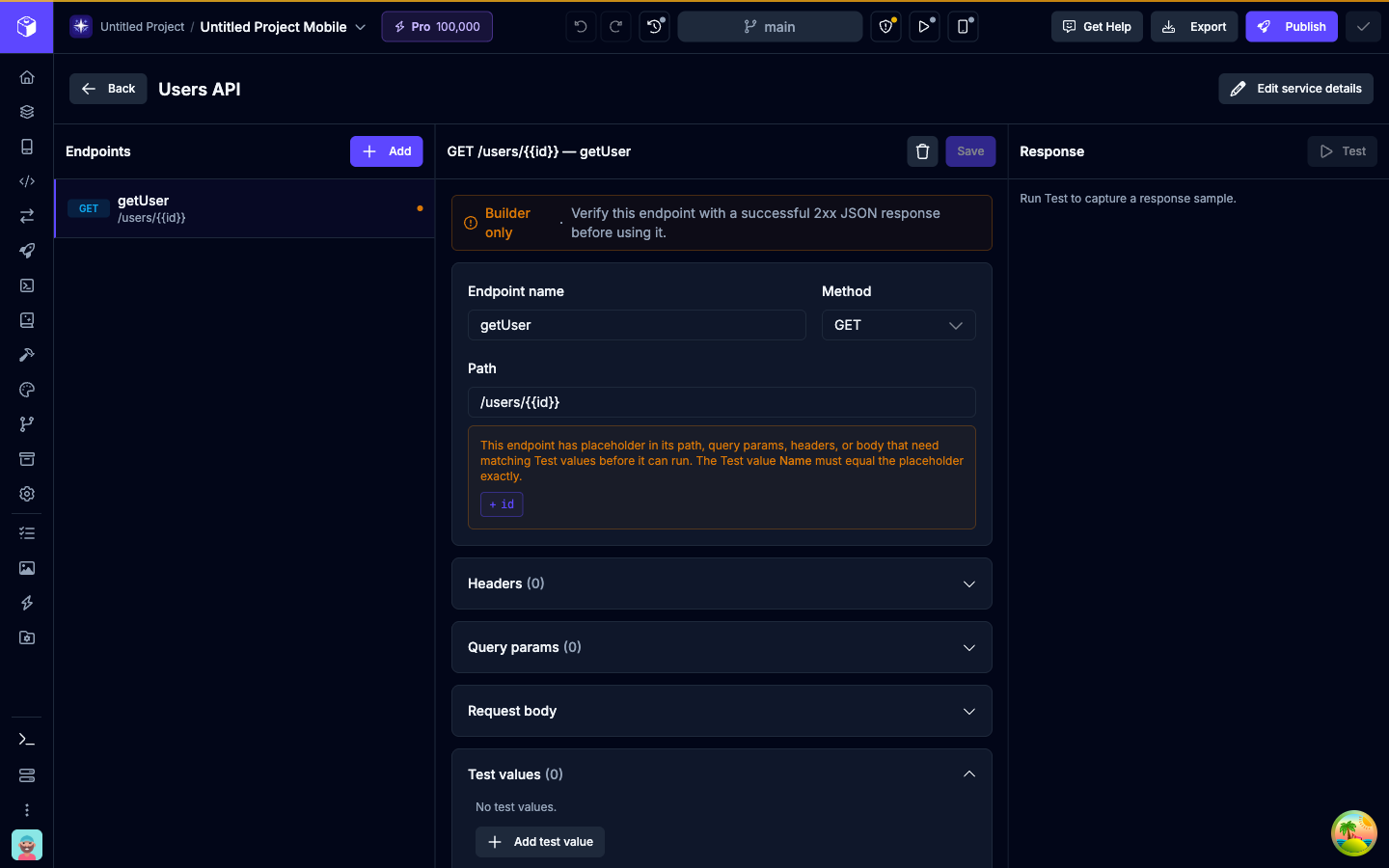
| Reason shown | What to do |
|---|---|
| Verify this endpoint with a successful 2xx JSON response before using it. | Save the endpoint, then click Test until it returns a 2xx response. |
| Only JSON endpoints with an inferred response schema are supported right now. | The endpoint has to return JSON. Endpoints that return other content can’t be called through draftbitApi. |
| Run the Test button once to capture the response shape. | For a GraphQL operation, save it and click Test. |
| Header ”…” uses sensitive env ”…”, which cannot run in frontend apps. | If the key is meant to be public, such as a publishable or client key, switch to a Plain text variable. If it’s a private key, keep it Sensitive and call the service from an API Backend instead. |
| Header ”…” holds a secret key, which would ship in your app’s code. Call this API from an API Backend instead. | Call the service from an API Backend, where the key can stay a Sensitive variable, and have your app call the backend. |
| Header ”…” uses env ”…”, which must start with … | Rename the variable, or use one that has your app’s prefix. |
| Header ”…” uses env ”…”, which is not active in development. | In Settings, turn the variable on for Development. |
| Header ”…” uses template values, which are not supported by draftbitApi.call yet. | Remove the placeholder from the header value. |
| Query parameter ”…” uses a complex template value, which is not supported by draftbitApi.call yet. | Make the value a single placeholder, or a fixed value. |
| Code key ”…” conflicts with another endpoint in this app. | Delete one of the two endpoints and add it again. A new endpoint gets a new key. |
| Operation no longer exists in the latest schema. | Update the code that calls it, then delete the operation. |
Calling endpoints from your app code
Section titled “Calling endpoints from your app code”Draftbit writes every Runtime Ready endpoint and operation into a file called draftbit-api.ts and keeps it up to date as you add, test, and change endpoints. Don’t edit it by hand, because your changes will be replaced.
| App type | File |
|---|---|
| Mobile app | draftbit-api.ts |
| Web app, website, or API Backend | src/draftbit-api.ts |
Import it as @/draftbit-api and pass the endpoint’s code key to draftbitApi.call. The key is the one shown in the endpoint’s Runtime Ready status.
import { draftbitApi } from "@/draftbit-api";
const order = await draftbitApi.call("orders-api__get__orders-id", {  path: { id: "ord_123" },  query: { expand: "items" },});
For a REST endpoint, the second argument can include:
| Field | Description |
|---|---|
path | Values for the path parameters, such as { id: "ord_123" }. |
query | Values for query parameters. A value you pass replaces the configured one. |
body | The request body. For a JSON endpoint, pass an object and Draftbit sends it as JSON. |
signal | An AbortSignal to cancel the request. |
For a GraphQL operation, pass the operation’s variables as the second argument:
const result = await draftbitApi.call("products", { first: 10 });The response is typed from the inferred schema, so your editor knows its fields. Each endpoint keeps its code key when you edit it, so code that calls it keeps working.
You don’t have to write these calls yourself. When you ask the agent to show data from a connected service, it checks for verified endpoints first and uses draftbitApi.call instead of writing its own request code.
Errors
Section titled “Errors”draftbitApi.call throws when a request fails:
DraftbitRestApiErrorfor a REST response that isn’t 2xx or isn’t valid JSON. It includes thestatusand the rawresponseText.DraftbitGraphqlErrorwhen a GraphQL API returns errors. They’re inerrors.
It also throws if a required query parameter or path parameter is missing, or if an environment variable a header needs has no value.
While your app runs in development, each response is also checked against the schema from your last test. If the API’s response has changed, the call throws an error saying the response no longer matches the verified schema. Test the endpoint again to record the new shape. This check doesn’t run in published builds.
Headers and secrets
Section titled “Headers and secrets”draftbit-api.ts is part of your app’s code, and it runs in your user’s browser or on their phone. That decides how to send credentials:
- Literal header values are written into the file as they are, and anyone who has your app can read them. Use them only for keys the provider says are safe in client apps, such as publishable or public keys. In a mobile app, web app, or website, Draftbit won’t write a secret key into the file: if a fixed header holds one, the endpoint stays Builder only and the reason tells you to call the service from an API Backend. This covers the keys you enter for Stripe, Clerk, Resend, Airtable, WordPress, and Stytch, plus any value that looks like a secret key, such as
sk_live_…,rk_test_…, or a Supabase secret or service role key. You can still Test those endpoints in the Builder. - Environment variable headers read their value from Settings when the app runs, so each environment can use a different value. The variable has to be Plain text and use your app’s public prefix:
EXPO_PUBLIC_for a mobile app,VITE_for a web app, orPUBLIC_for a website. Make sure it has a value in every environment you publish to.
In a GraphQL service’s Shared Headers, pick the variable in the menu next to each header’s value, or leave it on Literal value. For a REST service, ask the Integrations Agent to set a header from an environment variable.
Plain text variables are visible in compiled app code too. For a secret key that must stay private, don’t send it from the app. Call the service from an API Backend instead, where it can stay a sensitive variable.
Legacy REST services from Draftbit Classic
Section titled “Legacy REST services from Draftbit Classic”Apps imported from Draftbit Classic can include REST services from the original app. They show a Legacy v1 badge in the Configured section. You can open them to review their endpoints and remove them once you’ve moved to newer services. For editing, testing, and read-only files in these services, see Legacy V1 REST API services.
Limits
Section titled “Limits”- Only endpoints that return JSON can be Runtime Ready.
- GraphQL subscriptions can’t be called from app code.
- Header values can’t contain placeholders, and query parameter values can’t mix text with placeholders.
- Testing needs a running sandbox.
- Credentials and plain text variables used in headers end up in your app’s code. Keep private keys in an API Backend.