

Environment Variables
Environment variables hold settings your app needs but that don’t belong in your code, such as API URLs, public keys, and feature flags. Each variable can have its own value in Development, Staging, and Production, so your preview can talk to a test server while your published app talks to the real one.
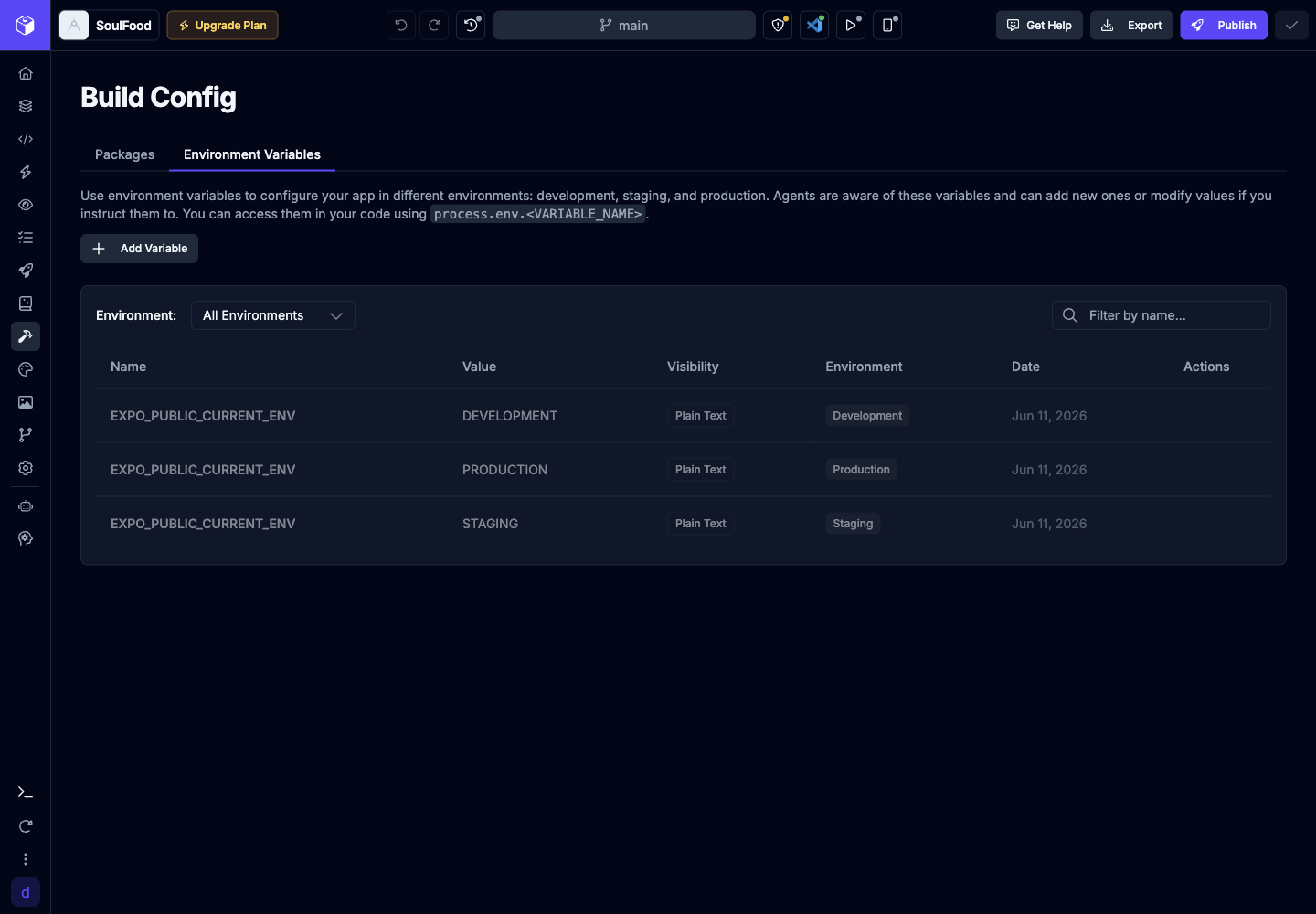
You’ll find them in Build Config, on the Environment Variables tab. You need the Editor role or higher to add, change, or delete variables.
Which environment each build uses
Section titled “Which environment each build uses”Every preview, build, and publish reads the values for exactly one environment. A variable that isn’t turned on for that environment doesn’t exist there.
| Where your app runs | Environment it uses |
|---|---|
| Preview Panel and the AI agent’s sandbox | Development |
| iOS and Android simulators (Native Previews, Pro plan and above) | Development |
| Share page | Staging |
| Testing Builds (Pro plan and up) | Staging or Production, whichever you pick when you start the build |
| Publishing to the web, App Store, Google Play, or an API Backend URL | Staging or Production, whichever you pick when you publish |
Values are read when the build starts:
- Development changes reach the sandbox as soon as you save. If the preview still shows the old value, restart it. Simulators load your app’s JavaScript from the sandbox, so reload the simulator to pick up a new value. Create a new simulator build only when the variable is used by your app’s native configuration, such as
app.config.jsor a config plugin. - Staging and Production changes don’t touch anything already published. They apply the next time you publish, create a test build, or click Update under your share link in the publish menu. Publishing an older version also uses your current values, not the values from when that version was saved.
Prefixes and how to read variables
Section titled “Prefixes and how to read variables”Each app type uses a prefix to mark variables that are safe to include in the app people download or open in a browser. The prefix and the way you read a variable in code depend on the app type:
| App type | Plain text prefix | Read it in code |
|---|---|---|
| Mobile App (Expo) | EXPO_PUBLIC_ | process.env.EXPO_PUBLIC_API_URL |
| Web App (React and Vite) | VITE_ | import.meta.env.VITE_API_URL |
| Website (Astro) | PUBLIC_ | import.meta.env.PUBLIC_API_URL |
| API Backend (Hono) | None | process.env.API_URL |
| Supabase Backend | None | Server-side only |
The Environment Variables tab shows the right syntax for your app above the list. Variable names are case-sensitive.
In a Mobile App, write out the full name, as in process.env.EXPO_PUBLIC_API_URL. Expo replaces those references when it builds your app, so a name assembled at runtime, such as process.env[name], comes back empty.
The current environment
Section titled “The current environment”Draftbit adds one variable to every app for you: CURRENT_ENV with your app’s prefix, such as EXPO_PUBLIC_CURRENT_ENV or VITE_CURRENT_ENV. On API Backends and Supabase Backends it’s just CURRENT_ENV. Its value is DEVELOPMENT, STAGING, or PRODUCTION, matching the build.
const isProduction = process.env.EXPO_PUBLIC_CURRENT_ENV === "PRODUCTION";It appears dimmed in the list. You can’t edit or delete it.
Visibility
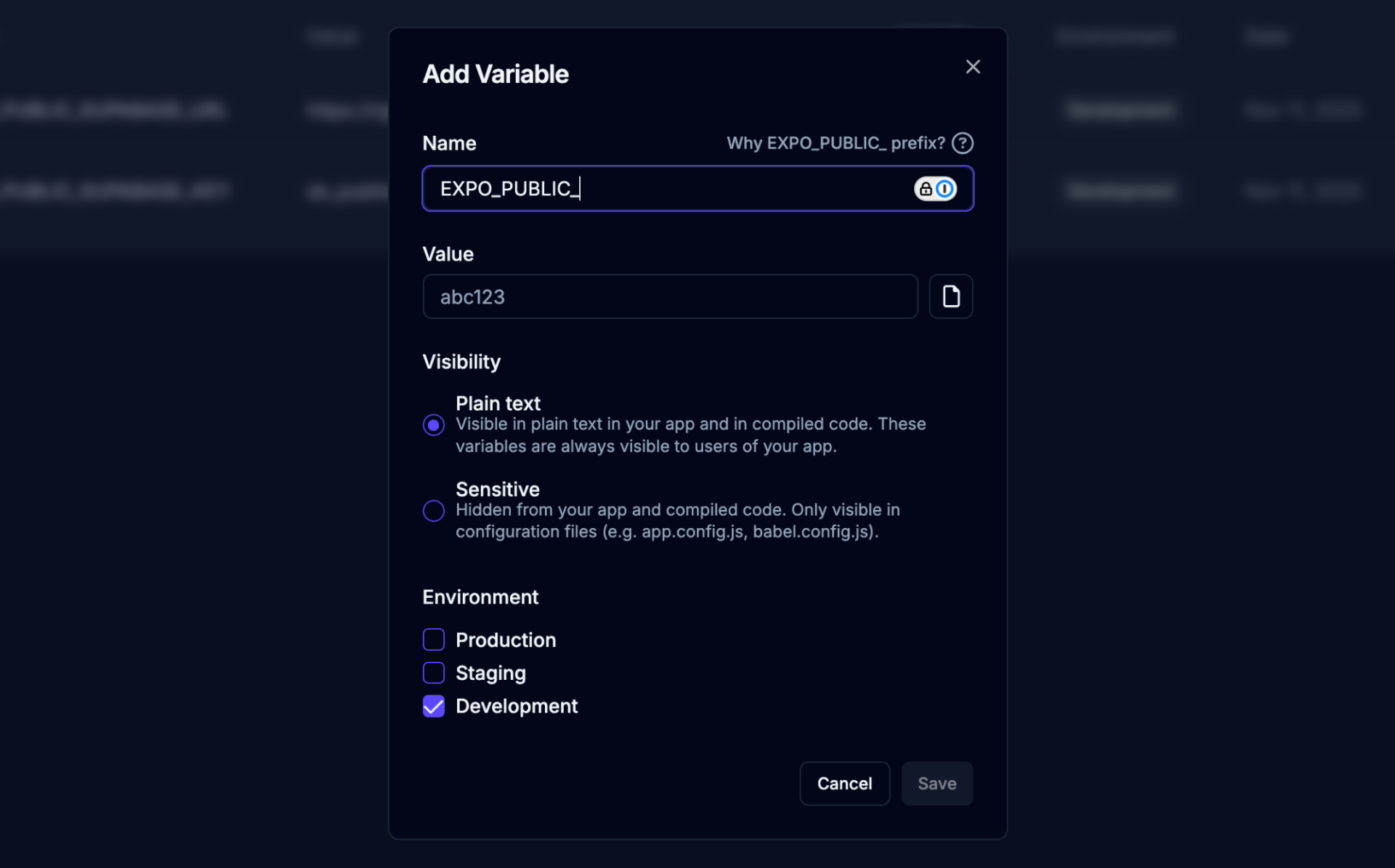
Section titled “Visibility”In a Mobile App, Web App, or Website, each variable is either Plain text or Sensitive. You choose when you create it, and you can’t change it later. To switch, delete the variable and add it again.
| Visibility | What it means |
|---|---|
| Plain text | Built into your app, where anyone who opens it can read the value. The name must start with your app’s prefix, and Draftbit adds the prefix for you as you type. Use it for values that are safe to share, such as a public API URL or a publishable key. |
| Sensitive | Not bundled into your app’s code by default, and hidden in the list after you save. Use it for values your build tooling or configuration files need, such as app.config.js or babel.config.js. The name must not start with your app’s prefix, and Draftbit removes it when you choose Sensitive. |
Backend variables
Section titled “Backend variables”API Backends and Supabase Backends have no Visibility choice. Every variable is stored as a secret, is available only to your server at runtime, and shows as Sensitive in the list. This is the right place for third-party API keys, payment keys, and other private values.
Add a variable
Section titled “Add a variable”-
Open Build Config and select the Environment Variables tab.
-
Click the
 button.
 -
Fill in the form:
Field Description Name Starts with a letter or underscore and contains only letters, numbers, and underscores, such as EXPO_PUBLIC_API_URL.Value The value for the environments you select. To read it from a file, use the file button next to the field. The file must hold a single line, and values can’t contain line breaks. Visibility Plain text or Sensitive. Not shown for API Backends or Supabase Backends. Environment Production, Staging, and Development. Check at least one. -
Click Save.
Use a different value in each environment
Section titled “Use a different value in each environment”Add the variable more than once with the same name, and give each copy different environments. For example, add VITE_API_URL with your test server checked for Development and Staging, then add VITE_API_URL again with your live server checked for Production.
For the Supabase URL and publishable key in each environment, see Connecting your apps to Supabase.
Two copies of a name can’t share an environment. If they overlap, you’ll see “A variable with this name and covering the same environments already exists.”
Reserved names
Section titled “Reserved names”Some names are set by Draftbit and can’t be used for your own variables:
CURRENT_ENVwith your app’s prefix, on every app.DRAFTBIT_API_KEYSon API Backends, which holds the environment’s API keys.- The database settings on Supabase Backends and on API Backends that have a database:
DATABASE_URL,DATABASE_MIGRATION_URL,SUPABASE_URL,SUPABASE_PUBLISHABLE_KEY,SUPABASE_SECRET_KEY,SUPABASE_PROJECT_REF,DRAFTBIT_DATABASE_PROVIDER,DRAFTBIT_RUN_DATABASE_MIGRATIONS,DRAFTBIT_D1_DATABASE_ID, andDRAFTBIT_D1_DATABASE_NAME.
Find, edit, and delete variables
Section titled “Find, edit, and delete variables”Use the Environment menu above the list to show All Environments or just one, and type in Filter by name… to narrow the list.
Click the edit icon on a row to change its name, value, or environments. Sensitive values never appear again after you save, so the Value field starts empty. Enter the value again before you click Save.
Click the delete icon and confirm to remove a variable. This can’t be undone.
Missing variables
Section titled “Missing variables”Draftbit checks your code for environment variables it reads, such as process.env.API_URL or import.meta.env.VITE_API_URL, and for names listed in an .env.example file. If any of them have no value, a notice at the top of the Environment Variables tab lists them.
Select a name in the notice to open the add form with that name filled in. Add a value, choose the environments, and save. The notice disappears once every variable your code reads has a value.
Variables that Draftbit provides for you, such as the current environment name or connected backend settings, never appear in the notice.
Variables from an imported project
Section titled “Variables from an imported project”When you import a project that has a .env file committed to its repository, Draftbit reads that file and adds its values here as environment variables for development, staging, and production. Values with a name Draftbit already manages are left alone, and a .env file that your repository ignores is never in the import, so add those variables yourself. Draftbit regenerates the sandbox .env from this list, so edit variables here rather than in the file.
Using variables with the AI agent
Section titled “Using variables with the AI agent”The AI agent works in the sandbox with your Development values. It knows which variables exist, and it can add new ones or change values when you ask. Mention the exact variable name when you want it to use an existing value instead of hardcoding one:
- “Use
EXPO_PUBLIC_API_URLfor all API requests.” - “Initialize Supabase using
EXPO_PUBLIC_SUPABASE_URLandEXPO_PUBLIC_SUPABASE_PUBLISHABLE_KEY.” - “Add a
VITE_MAPS_KEYvariable for Development with this value.”
Limits
Section titled “Limits”- Each value is a single line.
- Code exports and backups leave out your
.envfiles. Set the variables again wherever you run the exported code. - Plain text values, and sometimes Sensitive ones, can be read by anyone who has your app. Only a backend keeps a secret private.
For more on how Expo handles environment variables, see the Expo documentation.