

Briefs
Open Briefs in the app editor’s left sidebar. To get your first brief, ask the agent for one in chat.
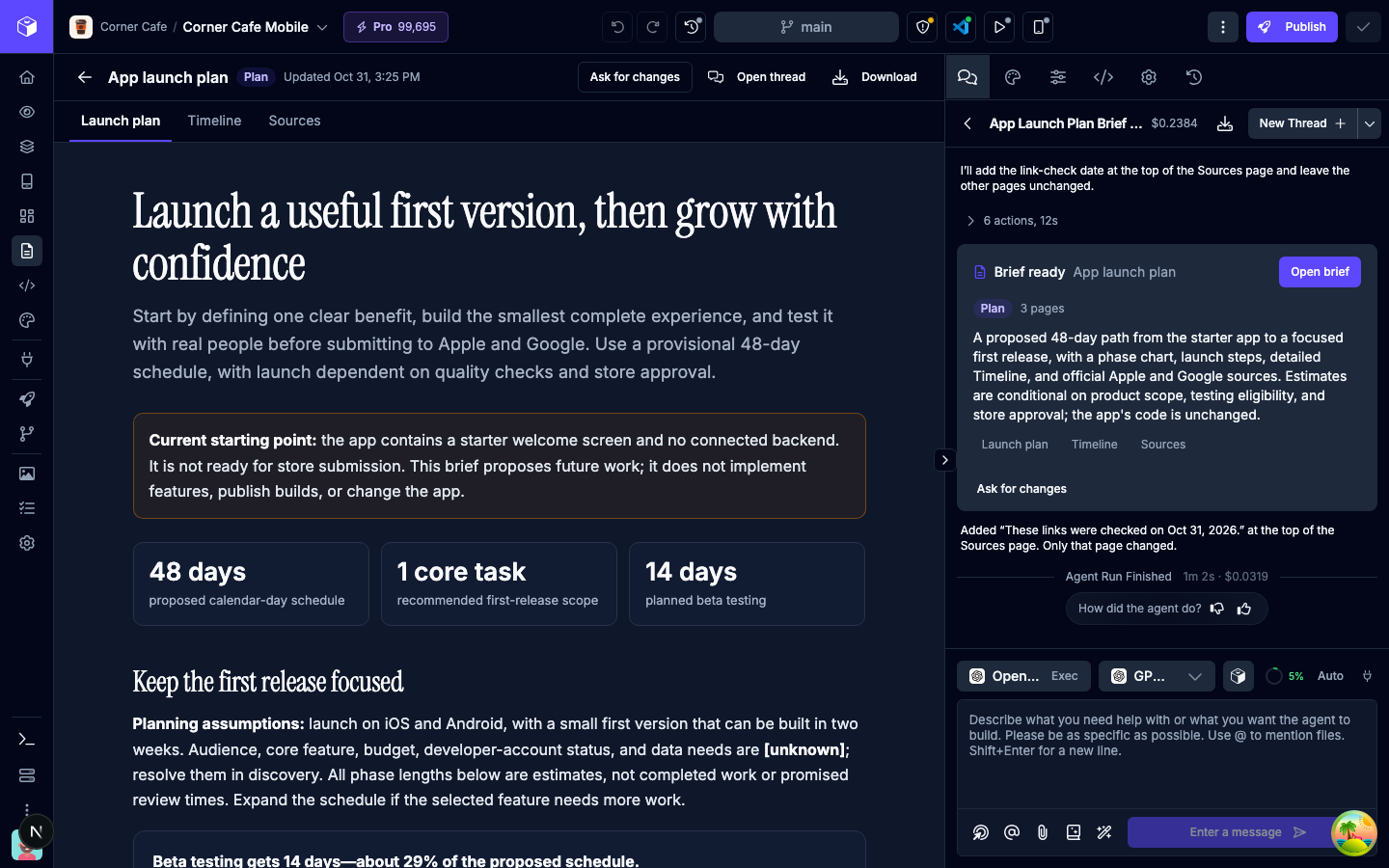
Briefs are documents the agent writes for you: a launch plan, research on competitors, a pricing strategy, a spec for a feature, or a report. You read them in the app editor, next to the chat. Writing a brief never changes your app’s code.
Briefs work for every kind of app. You need the Editor role or higher to use them.
Asking for a brief
Section titled “Asking for a brief”Ask the agent in chat, for example “Research the top habit tracker apps and write it up as a brief” or “Write a launch plan for this app.” The agent can also offer to write one. If you say yes, it writes it.
While the agent works, Briefs opens and fills in as each page is saved. When it’s done, a Brief ready card appears in the chat with a short summary, the brief’s pages, and an Open brief button.
Reading a brief
Section titled “Reading a brief”Briefs lists every brief with its kind (Plan, Research, Strategy, Spec, or Report), a short summary, how many pages it has, and when it last changed. Click Open brief to read one, or Open thread to go back to the chat that wrote it.
Longer briefs have more than one page. Switch pages with the tabs above the brief, or with the page menu on a phone. Links in a brief can take you to another page, to a mockup, or to a source on the web, which opens in a new tab.
If a page keeps trying to open other pages, Briefs pauses it and says so. Click Reset page to load it again.
Briefs follow the app editor’s light or dark theme.
Asking for changes
Section titled “Asking for changes”Click Ask for changes to start a chat message about the brief, such as Brief "Launch plan", Overview page:, with the cursor in the chat box. Finish it with what you’d like changed and send it. The agent updates the brief in place. The Brief ready card in chat has Ask for changes too, which starts the message without a page name.
When the agent works from a plan, it can tick off the plan’s steps as it finishes them.
Downloading a brief
Section titled “Downloading a brief”Click Download to save the brief as a single HTML file with every page in order. It opens in any browser, and you can print it or save it as a PDF from there.
Deleting a brief
Section titled “Deleting a brief”In Briefs, click the trash icon on a brief and confirm. The agent can no longer read it. This can’t be undone.
Limits
Section titled “Limits”- Asking for a brief is a message to the agent, so it uses credits like any other message.
- A brief can have up to 30 pages.
- An app can hold up to 100 briefs.
- You can’t edit a brief directly. Ask the agent for changes instead.