

Integrations
Integrations connect your app and AI agent to third-party services like Supabase, REST APIs, GraphQL APIs, Canva, Xano, Linear, RevenueCat, and more. Open Integrations (  ) in the main menu. Its tabs come in two groups:
| Tabs | What’s there |
|---|---|
| This app: REST APIs and GraphQL, plus Supabase in a Supabase Backend app and Database in some backend apps | Services one app calls. See Supabase. |
| Project: MCPs, plus Supabase in other apps once the project has a Supabase instance | MCPs that give the AI agent tools for third-party services, and the project’s Supabase instance. They’re shared by every app in the project. |
Supabase Backend
Section titled “Supabase Backend”Supabase is available as an open-beta backend for Draftbit apps. Add a Supabase Backend app to your project to get a managed PostgreSQL database, authentication, storage, and edge functions that every app in the project can use. The AI agent helps create and manage tables, authentication, storage, and related app code.
Once Supabase is set up, Integrations shows a Supabase tab in every app in the project: with the app’s own tabs in the Supabase Backend app, and under Project in other apps. It opens the Supabase panel, where you manage sign-in providers, redirect URLs, custom SMTP, email templates, secrets, storage, and deployments yourself. See Supabase for everything the panel can do.
REST and GraphQL APIs
Section titled “REST and GraphQL APIs”Open Integrations in the main menu and use its REST APIs and GraphQL tabs to connect APIs from a catalog of services, import an OpenAPI spec or a GraphQL schema, or set up your own endpoints. Draftbit tests each endpoint against the live service. Endpoints that return JSON become Runtime Ready, and your app code can call them with draftbitApi.call. See REST and GraphQL APIs for the full setup.
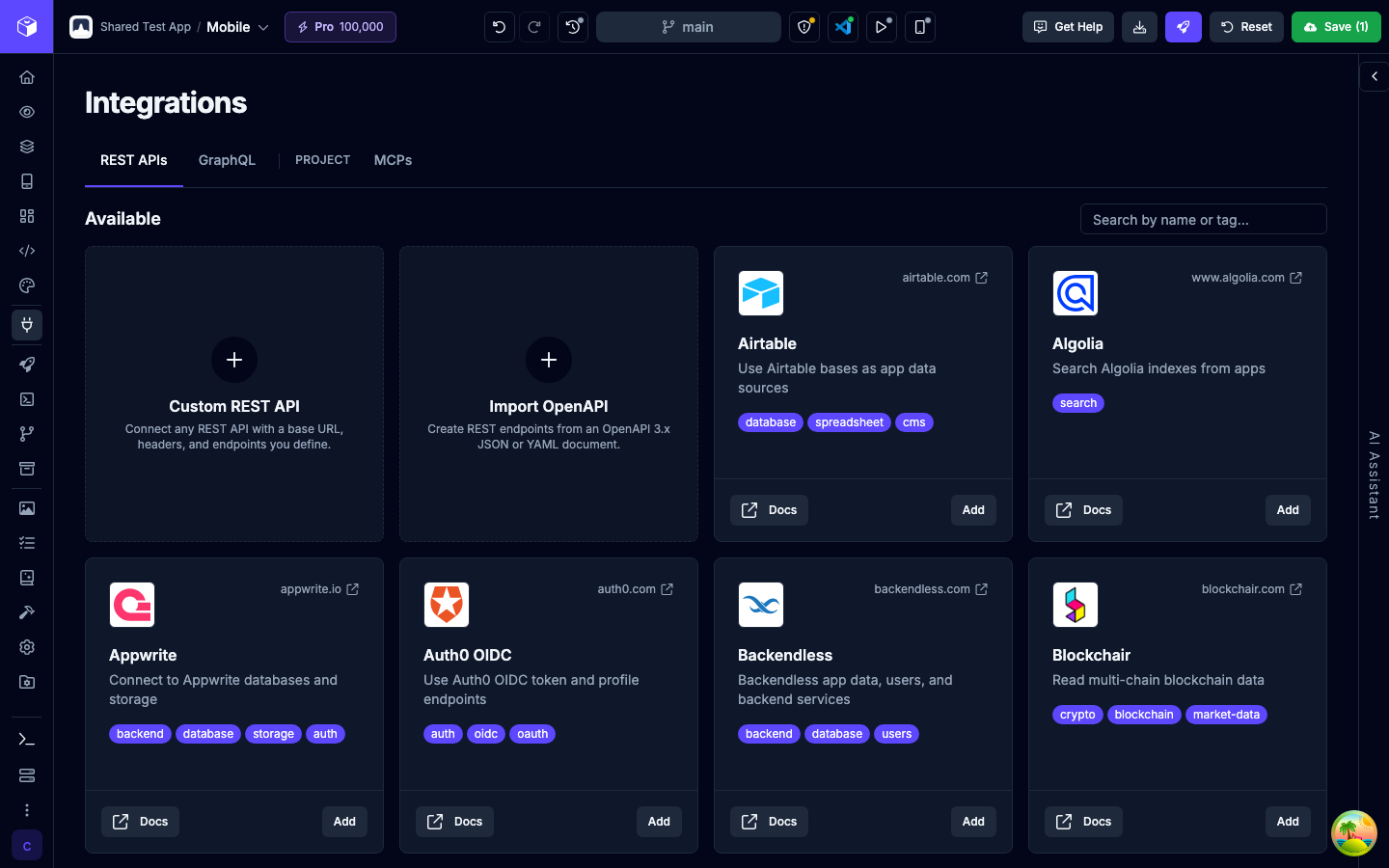
Some services, like Supabase, Xano, and Directus, are available both as an MCP and as a REST or GraphQL service. Use the MCP when you want the agent to manage the service itself, such as creating tables or deploying functions. Use a REST or GraphQL service when you want your app to call specific endpoints from a backend you already have.
MCP Integrations
Section titled “MCP Integrations”MCP Integrations connect the AI agent to third-party services through the Model Context Protocol (MCP), an open standard for giving AI agents tools. A REST or GraphQL service exposes specific endpoints. An MCP lets the agent manage the service itself: create tables, deploy functions, set up subscriptions, and so on.
Most services only ask you to sign in and grant Draftbit access. Some need a server URL, an API key, or both.
Finding MCPs
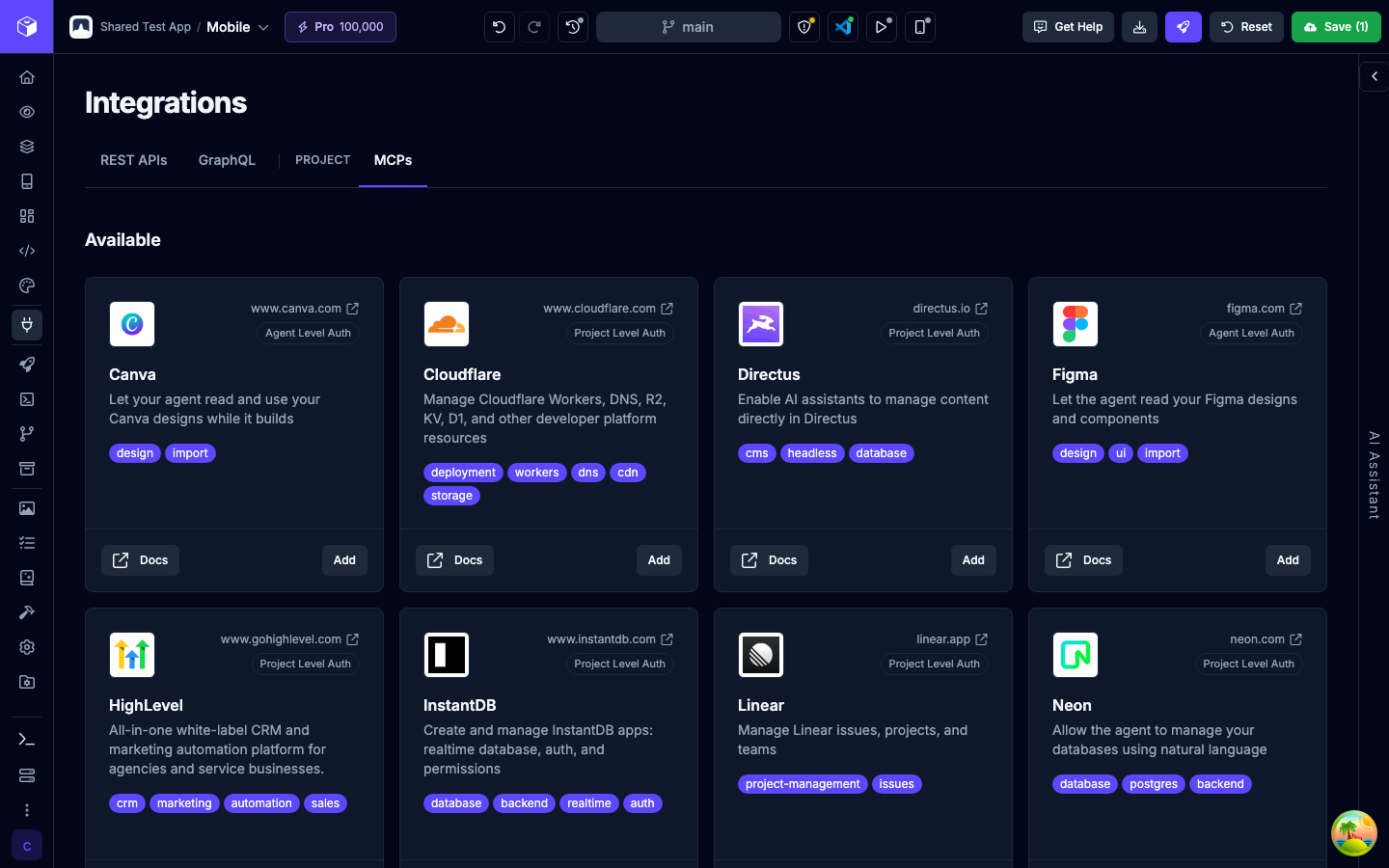
Section titled “Finding MCPs”Open Integrations in the main menu and select the MCPs tab, under Project.
MCPs belong to the project, not to one app. You connect a service once, and every app in the project can use it. To keep an MCP out of some apps, use Enabled apps.
The MCPs tab has up to three sections:
- Configured: MCPs in this project that are turned on.
- Available: catalog services you haven’t added yet, plus Add custom MCP server.
- Disabled: MCPs that are turned off. The AI agent doesn’t use them.
Adding an MCP
Section titled “Adding an MCP”-
In Available, find the service and click Add.
-
Fill in what the service asks for. Services that support both let you choose Sign in with OAuth or API key.
-
Click Add & Verify. For OAuth, a new window opens where you sign in and grant access. If it doesn’t open, click Open Authorization Page.
-
Draftbit connects to the server and lists its tools. When you see Integration Complete!, the MCP is listed under Configured.
The sections below cover setup details for each service in the catalog.
MCP status and badges
Section titled “MCP status and badges”Each configured MCP shows its status next to its switch:
| Status | What it means |
|---|---|
| Ready | Connected and verified. The agent can use it. |
| Authenticated | Signed in to the service. |
| Not verified | Added but not checked yet. Use Verify from the menu. |
| Unreachable | Draftbit couldn’t reach the server. Check the URL and credentials, then verify again. |
| Transport error | The server rejected the connection method with HTTP 405. Check the server URL and the provider’s transport instructions, then verify again. |
| Requires agent auth | An agent-level MCP that no agent has authorized yet. See Authorizing each agent. |
| Ready for 1 agent | An agent-level MCP that some of your agents have authorized, but not all. |
| Disabled for this app | The MCP is on for the project but turned off for the app you’re in. |
| Not in your plan | A custom MCP server on a plan that doesn’t include them. Click Upgrade to use it again. |
| Disabled by admin | Draftbit has turned this integration off. It can’t be used until it’s turned back on. |
A badge in the card’s corner shows how the MCP is authorized:
- Project Level Auth: authorized once for the whole project. Every app shares the same connection.
- Agent Level Auth: each AI agent authorizes it separately.
A badge next to the name marks two kinds of MCP:
- Custom: a custom MCP server you added.
- System: an MCP that Draftbit sets up for you, such as the connection to a Draftbit-managed Supabase backend. It shows Managed by Draftbit instead of a switch, and you can’t edit or remove it. If the project has more than one Supabase instance, pick the one the agent uses from its Instance menu. The change applies from the next agent run.
Managing an MCP
Section titled “Managing an MCP”You need the Editor role or higher to add, edit, verify, or remove MCPs.
Turn an MCP’s switch off to stop the agent from using it in every app in the project. It moves to Disabled until you turn it back on.
For everything else, open the card’s menu:
| Option | What it does |
|---|---|
| Enabled apps | Choose which apps in the project use this MCP. All apps are enabled by default. Clear an app’s checkbox to turn the MCP off for that app only. |
| Edit | Change the connection’s settings or keys, then click Save & Verify. Saved keys and custom header values stay hidden: leave one as is to keep it, or click it to enter a new value. |
| Verify | Check the connection and list the server’s tools. See Verifying a connection. |
| Re-authorize | Sign in to the service again, for example after access expires. Shown for MCPs that use OAuth. |
| Manage Agent Auth | Shown instead of Edit, Verify, and Re-authorize for agent-level MCPs. See Authorizing each agent. |
| Remove | Delete the MCP from the project. |
Verifying a connection
Section titled “Verifying a connection”In Integrations > MCPs, open a configured MCP’s menu and select Verify. Draftbit connects to the server and lists its available tools. A successful check shows Verification Complete! and the number of tools found.
If the check shows Authorization Required, click Authorize to sign in and grant access in a new tab. Return to the Verify dialog and click Retry. If authorization is canceled or fails, you can authorize again from the same dialog. For a connection that uses an API key, edit the connection if its key is rejected.
Authorizing each agent
Section titled “Authorizing each agent”Some MCPs, including Figma and Canva, use Agent Level Auth. Each coding agent keeps its own authorization, so connecting Claude Code doesn’t connect OpenAI Codex. Connect every agent you plan to use with that MCP.
-
Open the MCP’s menu and select Manage Agent Auth.
-
Next to an agent, click Connect. The service’s authorization page opens in a new tab.
-
Sign in and grant access. The tab then redirects to a
localhostor127.0.0.1address that fails to load. That’s expected. -
Copy the full URL from that tab’s address bar, paste it into Callback URL, and click Finish connection.
The agent then shows Connected. To authorize it again, click Reconnect.
Supabase
Section titled “Supabase”Supabase is a open-source backend-as-a-service platform that provides authentication, database, storage, and real-time capabilities for your app.
Authenticating
Section titled “Authenticating”The Supabase MCP connector is authenticated using your Supabase account. When you click the Add & Verify button, you will be redirected to the Supabase website to sign in and grant access to Draftbit.
Once you have signed in and granted access, you’re back in Draftbit with a list of the projects in the Supabase organization you picked. Choose the project the AI Agent should work on and click Save & Verify. The connection only reaches that project, so the agent can’t see or change your other Supabase projects.
A Supabase MCP without a project, such as one added before this step existed or one whose setup was closed before choosing, can still reach every project in its organization. Its card says Can reach every project in your Supabase organization. Click Choose a project to limit it to one. To give the agent a second Supabase project, add it as a custom MCP server (on Pro and up) with ?project_ref=<project-ref> at the end of the URL.
The Supabase integration allows the AI Agent to:
- Create and manage tables in your Supabase database
- Insert, update, and delete data in your Supabase database
- Query your Supabase database
- Store and access files in your Supabase Storage
- Subscribe to real-time updates from your Supabase database
- Set up user authentication and authorization
- Create edge functions to handle business logic
Read more about the Supabase MCP in their docs
Xano is a no-code/low-code backend-as-a-service platform that lets you model data, build APIs, and handle business logic without managing servers.
Authenticating
Section titled “Authenticating”The Xano MCP connector requires:
- Server URL: The Streaming Connection URL from your Xano MCP server
- Auth Key: Your Xano access token for that MCP server
Important: When copying your connection URL from Xano, make sure to use the Streaming Connection URL — not the “Instance API” URL. These are two different options in Xano’s interface and only the Streaming Connection URL is supported.
Xano’s Connecting Clients guide refers to these values as the server URL and Token.
Troubleshooting
Section titled “Troubleshooting”Proxy errors on connection If you see a proxy error when connecting, check that Realtime resources are enabled on your Xano instance. This setting is disabled by default on some Xano plans and must be turned on for the MCP connection to work. You can enable it in your Xano instance settings.
The Xano integration allows the AI Agent to:
- Create and manage data models in your Xano database
- Build and deploy APIs in your Xano workspace
- Query your Xano database
- Store and access files in your Xano Storage
- Subscribe to real-time updates from your Xano database
- Set up user authentication and authorization
- Create edge functions to handle business logic
Read more about the Xano MCP in their overview and client connection docs.
Directus
Section titled “Directus”Directus is a open-source backend-as-a-service platform that provides authentication, database, storage, and real-time capabilities for your app.
Authenticating
Section titled “Authenticating”The Directus MCP connector requires:
- Server URL: Your Directus instance URL
- Auth Key: Your Directus access token
Directus’ MCP docs describe this setup as connecting your AI tool to the Directus MCP server using your instance URL and an access token.
The Directus integration allows the AI Agent to:
- Create and manage tables in your Directus database
- Insert, update, and delete data in your Directus database
- Query your Directus database
- Store and access files in your Directus Storage
- Subscribe to real-time updates from your Directus database
- Set up user authentication and authorization
- Create workflows to handle business logic
Read more about the Directus MCP in their docs.
Linear
Section titled “Linear”Linear is a project management platform that lets you track your work and collaborate with your team.
Authenticating
Section titled “Authenticating”The Linear MCP connector is authenticated using your Linear account. When you click the Add & Verify button, you will be redirected to the Linear website to sign in and grant access to Draftbit.
Once you have signed in and granted access, you will be redirected back to Draftbit and the Linear MCP connector will be added to your project.
The Linear integration allows the AI Agent to:
- Create and manage projects and issues
- Work on specific issues in your Linear workspace
Read more about the Linear MCP in their docs.
RevenueCat
Section titled “RevenueCat”RevenueCat is a subscription management platform that lets you manage your app’s subscriptions and revenue.
The RevenueCat integration allows the AI Agent to:
- Integrate subscription billing and in-app purchases into your app
- Create and manage subscriptions and products
- Manage subscription status and renewals
Connecting RevenueCat
Section titled “Connecting RevenueCat”In Integrations > MCPs, add RevenueCat and choose Sign in with OAuth or API key. OAuth opens RevenueCat so you can sign in and grant access. For API key authentication, enter an API v2 secret key from the RevenueCat dashboard, then click Add & Verify. API v1 and public SDK keys won’t work.
Existing API key connections keep their saved key. To switch one to OAuth, edit the connection, choose Sign in with OAuth, and click Save & Verify. If RevenueCat rejects OAuth for your client, use an API v2 secret key and verify the connection again.
Read more about the RevenueCat MCP in their docs.
Stripe
Section titled “Stripe”Stripe is a payment processing platform that lets you accept payments from your customers.
The Stripe integration allows the AI Agent to:
- Integrate payment processing into your app
- Create and manage products and prices
Connecting Stripe
Section titled “Connecting Stripe”In Integrations > MCPs, add Stripe and choose Sign in with OAuth or API key. OAuth opens Stripe so you can sign in and grant access. For API key authentication, create a Stripe Agent key, paste it into the Authorization field, and click Add & Verify.
From 31 October 2026, Stripe MCP accepts only OAuth or restricted keys tagged for agent access. If you connected with an ordinary secret key or an untagged restricted key, edit your Stripe connection to replace the key or switch to OAuth, then verify it again. Updating the catalog doesn’t replace your stored key.
Read more about the Stripe MCP in their docs.
Square
Section titled “Square”Square’s MCP connects the AI agent to Square customers, orders, items, and other Square API resources while it builds. Find it in Integrations > MCPs. The hosted server uses your live Square account; Square’s hosted MCP doesn’t offer sandbox access.
Connecting Square
Section titled “Connecting Square”Add Square, click Add & Verify, and sign in when Square opens. Review the requested permissions and grant access to finish verification. New connections use https://mcp.squareup.com/mcp and OAuth; you don’t paste an API key.
If an existing connection uses the older /sse endpoint and fails verification, remove it and add Square again to use the current catalog URL, then authorize it again. Catalog updates don’t replace the URL stored in an existing connection. Square controls which MCP clients can register; if it rejects the client, changing your endpoint alone won’t resolve that restriction.
If a connection shows Transport error, its server rejected the connection method with HTTP 405 after both supported transports failed. Check the server URL and the provider’s transport instructions, then verify again. An authentication failure instead needs valid credentials or renewed authorization.
Read more about the Square MCP in their docs.
Sentry
Section titled “Sentry”Sentry is a error tracking platform that lets you track and fix errors in your app.
Authenticating
Section titled “Authenticating”The Sentry MCP connector is authenticated using your Sentry account. When you click the Add & Verify button, you will be redirected to the Sentry website to sign in and grant access to Draftbit.
Once you have signed in and granted access, you will be redirected back to Draftbit and the Sentry MCP connector will be added to your project.
The Sentry integration allows the AI Agent to:
- Track errors in your app
- Fix errors in your app
Read more about the Sentry MCP in their docs.
Cloudflare
Section titled “Cloudflare”Cloudflare provides DNS, edge compute (Workers), object/key‑value storage (R2, KV), serverless databases (D1), and other infrastructure services.
Authenticating
Section titled “Authenticating”The Cloudflare MCP connector is authenticated using your Cloudflare account. When you click the Add & Verify button, you will be redirected to the Cloudflare website to sign in and grant access to Draftbit.
The Cloudflare integration allows the AI Agent to:
- Manage DNS records and zones for your domains
- Create and deploy Workers
- Read and write data in KV, R2, and D1
- Configure caching, security, and routing rules
Read more about Cloudflare’s MCP servers in their docs.
HighLevel
Section titled “HighLevel”HighLevel (also known as GoHighLevel) is a CRM and marketing automation platform that lets you manage contacts, pipelines, campaigns, and workflows.
Authenticating
Section titled “Authenticating”The HighLevel MCP connector is authenticated using your HighLevel account. When you click the Add & Verify button, you will be redirected to HighLevel to sign in and grant access to Draftbit.
The HighLevel integration allows the AI Agent to:
- Read and update contacts and opportunities
- Trigger and manage automation workflows
- Create and update calendar events and appointments
- Send messages through configured channels
Read more about the HighLevel MCP in their docs.
Custom MCP
Section titled “Custom MCP”There are thousands of MCP servers out there for all kinds of services and purposes. Using the Custom MCP connector, you can connect the agent to almost any of them.
To add one, click Add custom MCP server in the Available section and fill in:
| Field | Description |
|---|---|
| Server URL | The URL of the MCP server you want to connect. |
| Authentication Type | OAuth lets you sign in to the service with your existing account. Header lets you send an API key or token in a header. |
| Custom Headers (Optional) | Click Add Header to add a header name (for example, Authorization) and value (for example, Bearer [your token]). |
Then click Add & Verify.
If your plan changes to one without custom MCP servers, they stay in your list but the agent stops using them. They show Not in your plan until you upgrade again.
Use the Canva integration to import a Canva design into Draftbit. After connecting Canva, choose a design from the searchable thumbnail picker. Draftbit starts a new AI thread that converts the selected design into React Native screens.
Figma is a design tool that lets you create and collaborate on designs.
The Figma integration allows the AI Agent to:
- Create and manage designs in your Figma project
- Create and manage components in your Figma project
- Create and manage styles in your Figma project
- and more!