

Agent Settings
Open Settings in the main menu and choose a section under Agent.
The Agent sections of Settings are where you set up the AI agents for an app. There are four:
| Section | What it’s for |
|---|---|
| Agents & Models | Default agent, models, and reasoning effort for new threads, plus your own AI subscriptions and keys. |
| Saved Prompts | Reusable prompts you can add to a message. |
| Claude Instructions | The CLAUDE.md instructions Claude Code reads at the start of each thread. |
| Codex Instructions | The AGENTS.md instructions OpenAI Codex reads at the start of each thread. |
You need Editor access or higher to change the settings on the Agents & Models section.
Agents & Models
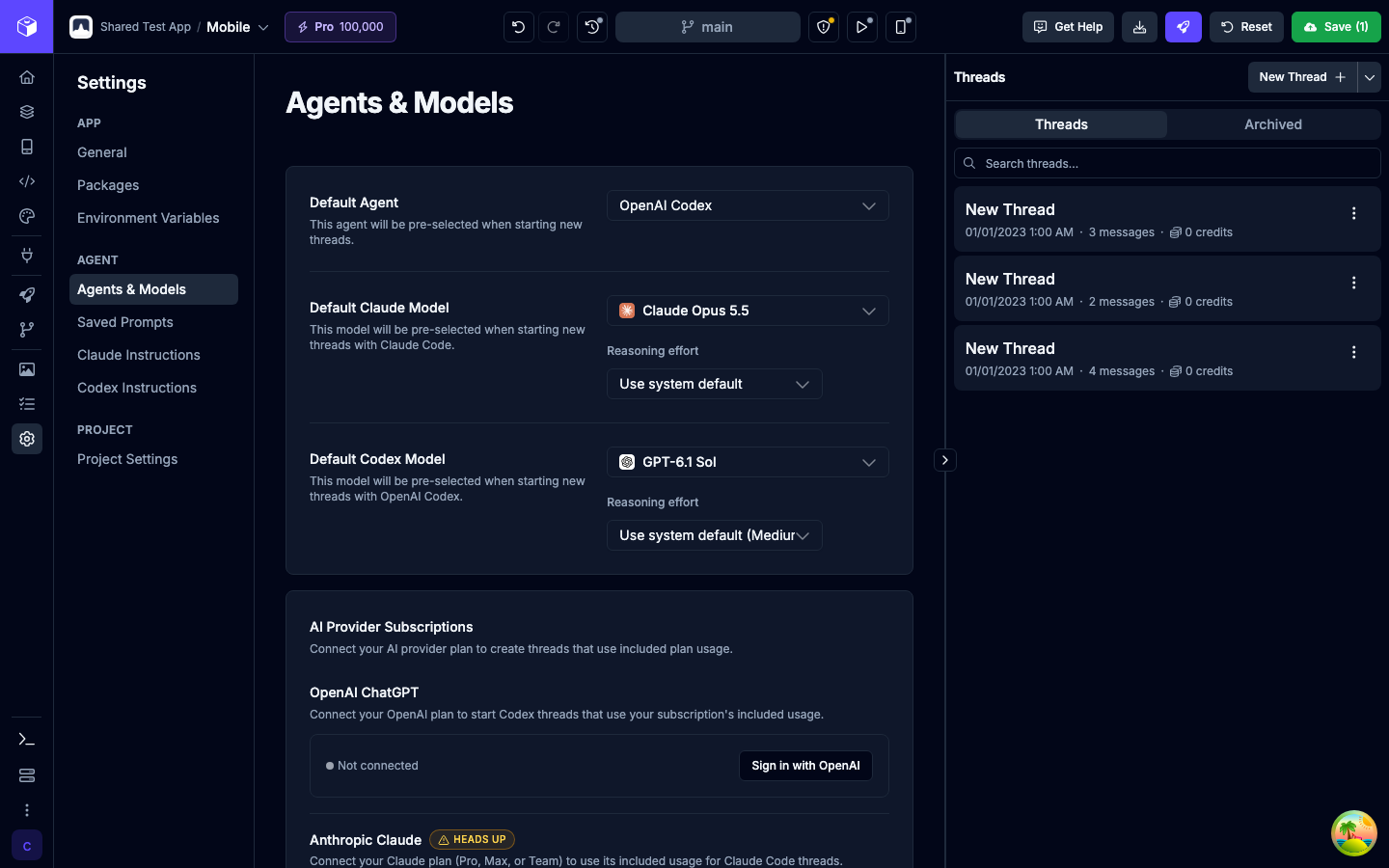
Section titled “Agents & Models”The Agents & Models section sets what a new chat thread starts with. You can still change the agent and model for any thread when you send a message in the Agent tab. Changes save automatically.
| Setting | What it does |
|---|---|
| Default Agent | The agent selected for new threads: Claude Code or OpenAI Codex. |
| Default Claude Model | The model selected when a new thread uses Claude Code. Claude Opus 5.5 unless you change it. |
| Default Codex Model | The model selected when a new thread uses OpenAI Codex. GPT-6.1 Sol unless you change it. |
| Reasoning effort | Next to each default model. How much the model thinks before it answers. The options depend on the model. Each model keeps its own setting. |
Leave Reasoning effort on Use system default unless you have a reason to change it. The menu shows which level the default uses for that model. Higher effort can help with harder changes, but runs take longer and use more tokens.
The models you can pick depend on the agent and on the AI gateway the thread uses (see Choosing how a thread is paid for):
- Claude Code runs Claude models, such as Claude Opus 5.5, Claude Sonnet 5.5, and Claude Haiku 5.5, on Draftbit credits, a Claude subscription, or an Anthropic or OpenRouter key.
- OpenAI Codex runs OpenAI models, such as GPT-6.1 Sol, on Draftbit credits, a ChatGPT subscription, or an OpenAI or OpenRouter key.
- Both agents can also run models from other providers, including DeepSeek, Gemini, GLM, Grok, Kimi, MiMo, MiniMax, Muse Spark, and Qwen, on Draftbit credits or an OpenRouter key.
On the Free plan, threads on Draftbit credits run OpenAI Codex with OpenAI models other than GPT-6 Astra. To use Claude Code, GPT-6 Astra, or other models on credits, you need the Standard plan or above. Your own subscription or API key runs the models it supports on every plan.
Security Review also starts a new thread using these defaults, including when you launch it from an existing chat. The action becomes available once the settings have loaded and a compatible model is available.
Choosing how a thread is paid for
Section titled “Choosing how a thread is paid for”When you start a thread, the AI Gateway menu in the chat composer decides who pays for the model usage:
| AI Gateway option | Who pays |
|---|---|
| Draftbit (Credits) | Your organization’s Draftbit credits. |
| OpenAI ChatGPT or Anthropic Claude | The included usage of a subscription you’ve connected. |
| My OpenRouter Key, My OpenAI Key, My Anthropic Key | Your own account with that provider, through an API key you’ve connected. |
The subscription and key options only appear once you’ve connected them, as described below. Each thread stays on the gateway it started with. Draftbit shows the gateway in chat and in thread history, so you can always tell how a thread is billed.
AI Provider Subscriptions
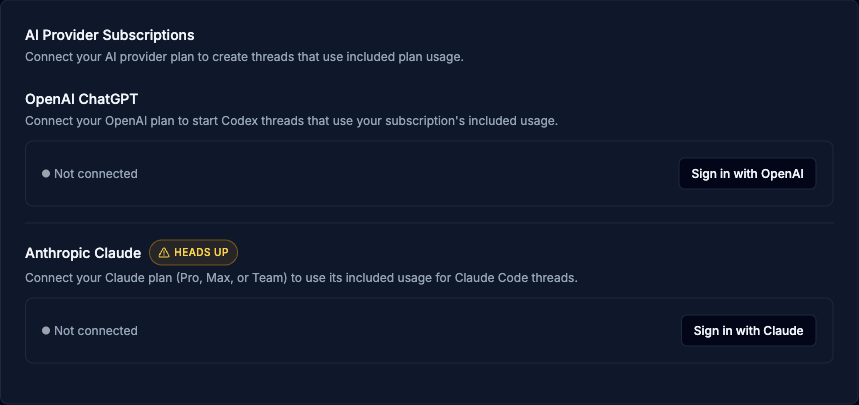
Section titled “AI Provider Subscriptions”If you already pay for ChatGPT or Claude, you can connect that subscription and run agent threads on its included usage instead of Draftbit credits. Connecting a subscription works on every Draftbit plan, including Free, where your own AI covers 20 agent runs a week.
Find it on the Agents & Models section, under AI Provider Subscriptions.
| Provider | Button | What it connects |
|---|---|---|
| OpenAI ChatGPT | Sign in with OpenAI | Your ChatGPT plan, for OpenAI Codex threads. |
| Anthropic Claude | Sign in with Claude | Your Claude plan (Pro, Max, or Team), for Claude Code threads. |
A connection you make here applies to this app only. To connect a subscription once for every app, see Organization-wide AI providers.
Connecting ChatGPT
Section titled “Connecting ChatGPT”OpenAI only accepts the code if device code sign-in is turned on for your account. Before you start, open ChatGPT’s security settings and turn on Enable device code authorization for Codex. On a ChatGPT Business or Enterprise workspace, an admin has to allow device code login in the workspace’s permissions first. If OpenAI keeps asking you to sign in or never accepts the code, check this setting, then start the connection again.
-
Select Sign in with OpenAI. OpenAI’s sign-in page opens in a new tab. On the card, Step 1 links to the ChatGPT setting above, and Step 2 shows the sign-in link in case the tab didn’t open.
-
Sign in to the OpenAI account that has your ChatGPT subscription.
-
When OpenAI asks for a code, enter the one-time code shown under Step 3 on the card. Select the copy button next to it to copy it.
-
Go back to Draftbit. The card updates by itself once sign-in finishes and shows Connected via OpenAI with your plan, such as ChatGPT Plus.
The code expires after 15 minutes. If it expires, or you change your mind, select Cancel and start again.
ChatGPT Free and Go include three Codex models: GPT-6 Luna, GPT-5.6 Luna, and GPT-5.6 Terra, with low usage limits. On those plans, ChatGPT threads only offer these models, and new threads start on one of them. The card lists them under your plan. If a thread already uses another model, Draftbit asks you to pick one of these before it sends your message. Plus and higher plans include more models, such as GPT-6.1 Sol and GPT-6 Astra. If you change your ChatGPT plan, select Refresh plan on the card so Draftbit picks up the new plan.
Connecting Claude
Section titled “Connecting Claude”-
Select Sign in with Claude. The Claude sign-in page opens in a new tab. If it doesn’t, select Open the Claude sign-in page on the card.
-
Sign in to the Claude account that has your Pro, Max, or Team plan.
-
After you sign in, Claude shows an Authentication Code that looks like
XXXXXXX#YYYYYY. Copy the whole code, including the part after the#. -
Back in Draftbit, paste the code into the field under Step 2 and select Submit. The card shows Connected via Claude.
The sign-in expires after 15 minutes. If you paste something that isn’t a complete code, Draftbit asks you to copy the whole code and paste it again. If the attempt expired or Claude rejected the code, Draftbit starts a new sign-in for you. Open the Claude sign-in page again and paste the new code.
The Heads up badge next to Anthropic Claude notes that Claude.ai connectors and Remote Control aren’t available when you use your Claude subscription in Draftbit, and that usage remains subject to Anthropic’s policies. See Claude authentication for more.
Connection status
Section titled “Connection status”Each subscription card shows its current status:
| Status | What it means |
|---|---|
| Not connected | No subscription is connected. Threads can’t use this subscription yet. |
| Connected via OpenAI or Connected via Claude | This app has its own connection. Select Sign out to remove it. |
| Using organization subscription | This app uses the subscription your organization connected. Select Sign in for this app instead to use a different account for this app only. |
| Reconnect required | The provider rejected the connection. Select Reconnect with OpenAI or Reconnect with Claude. |
| Connected with an API key (not an OpenAI subscription) | The agent is signed in with an API key instead of a subscription. Sign in with OpenAI to use your subscription. |
| Connected with an API key (not a Claude subscription) | The agent is signed in with an API key instead of a subscription. Sign in with Claude to use your subscription. |
Using a subscription in a thread
Section titled “Using a subscription in a thread”Select OpenAI ChatGPT or Anthropic Claude from AI Gateway when you start a thread. ChatGPT runs OpenAI Codex threads and Claude runs Claude Code threads.
When you select a subscription in the new-thread composer, Draftbit checks its connection before enabling Send. If the connection needs attention, the composer keeps your selected subscription and draft. A spinner beside the provider means the connection is being checked; a green check means it is ready. Hover over or focus the status icon for details. If a subscription check takes longer than 15 seconds, Draftbit stops waiting and shows an amber warning. Select the warning icon to choose Retry or Open settings. To use Draftbit credits instead, select Draftbit (Credits) from AI Gateway yourself.
If a new thread asks you to reconnect your subscription, choose Open settings in the error message. Reconnect the matching provider under AI Provider Subscriptions, then return to your draft and try again. If Draftbit cannot verify the subscription, check the connection in settings before retrying. Your unsent message and attachments stay in the composer.
If a ChatGPT thread shows Reconnect ChatGPT, OpenAI rejected the connection when the run started. Choose Open settings, sign out of the affected ChatGPT connection if it still shows as connected, then sign in again and retry your message. The button opens app Agent settings for an app connection, or organization AI Providers settings for a shared connection if you’re an organization admin or owner. Other editors can ask an organization admin to reconnect the shared subscription or connect their own in app Agent settings.
If a ChatGPT thread says a model isn’t available for this connection, your ChatGPT plan may not include that Codex model. Pick a different model and send your message again, or select View ChatGPT plans to compare plans. To keep the model, start a new thread and select Draftbit (Credits) from AI Gateway.
If a connected subscription hits its usage limit, the chat shows a message from that provider instead of a generic agent failure. Upgrading your Draftbit plan or buying credits doesn’t raise that limit. Wait for it to reset, or start a new thread and select Draftbit (Credits) from AI Gateway.
AI Provider API Keys
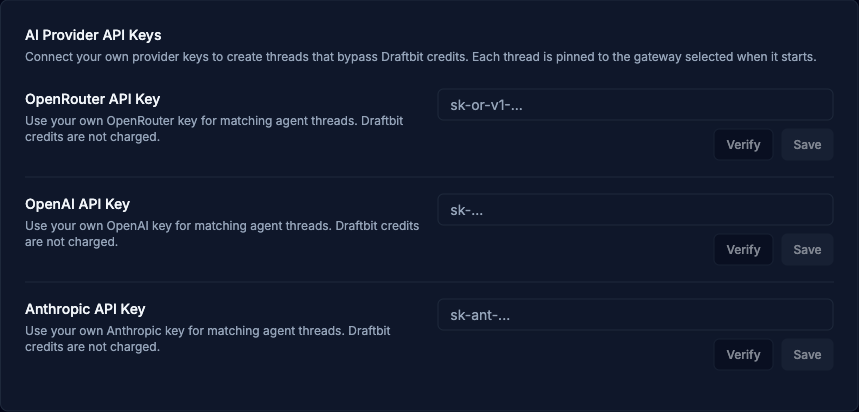
Section titled “AI Provider API Keys”You can also bring your own AI provider API key. Threads that use your key run on your provider account and bypass Draftbit credits entirely. This works on every plan, including Free, where your own AI covers 20 agent runs a week.
Find it on the Agents & Models section, under AI Provider API Keys.
Supported providers
Section titled “Supported providers”| Provider | Where to create a key |
|---|---|
| OpenAI | platform.openai.com/api-keys |
| Anthropic | console.anthropic.com/settings/keys |
| OpenRouter | openrouter.ai/settings/keys |
Adding a key
Section titled “Adding a key”-
Paste your key into the field for that provider, such as OpenAI API Key.
-
Select Verify. Draftbit checks the key with the provider. You can’t save a key until it passes.
-
Select Save. The row shows Connected and the last four characters of the key.
To replace a key, select Change, then verify and save the new one. To stop using it, select Remove.
When you select Verify, Draftbit tells you what it found:
- Verified. The key works. For an OpenRouter key with a spending limit, the message also shows how much of the limit is left.
- Key invalid. The provider rejected the key. The message includes the provider’s reason. Check that you copied the whole key and that it hasn’t been revoked.
- Spending limit has been reached (OpenRouter). The key works, but threads can’t run on it until you raise the key’s limit in OpenRouter.
- None of Draftbit’s models are allowed (OpenRouter). The key’s OpenRouter settings block every model Draftbit uses. Change the key’s allowed models or providers in OpenRouter.
- Model eligibility could not be checked (OpenRouter). The key works, but Draftbit couldn’t confirm which models it allows. Try again later.
How it works
Section titled “How it works”- Once a key is connected, choose My OpenAI Key, My Anthropic Key, or My OpenRouter Key from AI Gateway when you start a thread. The models you can pick depend on the provider.
- You can mix credit threads and threads on your own key in the same app. Each thread records the gateway it used.
- Rate limits and model availability come from your provider account, not Draftbit. If a request fails because of provider limits or an expired key, the error appears in the chat.
If your OpenRouter key has no available models, open Agent settings to review the key’s limits or choose another AI gateway. If subagent options cannot load, retry or choose Automatic.
If starting a thread, sending a message, or running a task fails because your OpenRouter key has reached its spending limit, select Open settings in the error message. This opens the app’s Agents & Models settings. Raise the key’s limit in OpenRouter or connect a different key, then retry. Buying Draftbit credits does not increase your OpenRouter key’s limit.
If a key is removed while you’re writing a message, Draftbit keeps your draft and selected gateway. Select the warning icon beside AI Gateway to open Agent settings or Retry the check, or select another gateway before sending.
For more on how this affects billing, see Credits and Using Credits Efficiently.
Organization-wide AI providers
Section titled “Organization-wide AI providers”Instead of connecting subscriptions and keys app by app, you can connect them once for your whole organization. Every app in the organization, including new ones, can use them right away.
Open Organization → AI Providers in the dashboard sidebar. Only organization Owners and Admins can manage this page. Other members see a note asking them to contact an admin, or to set app-level keys in an app’s Agent settings instead.
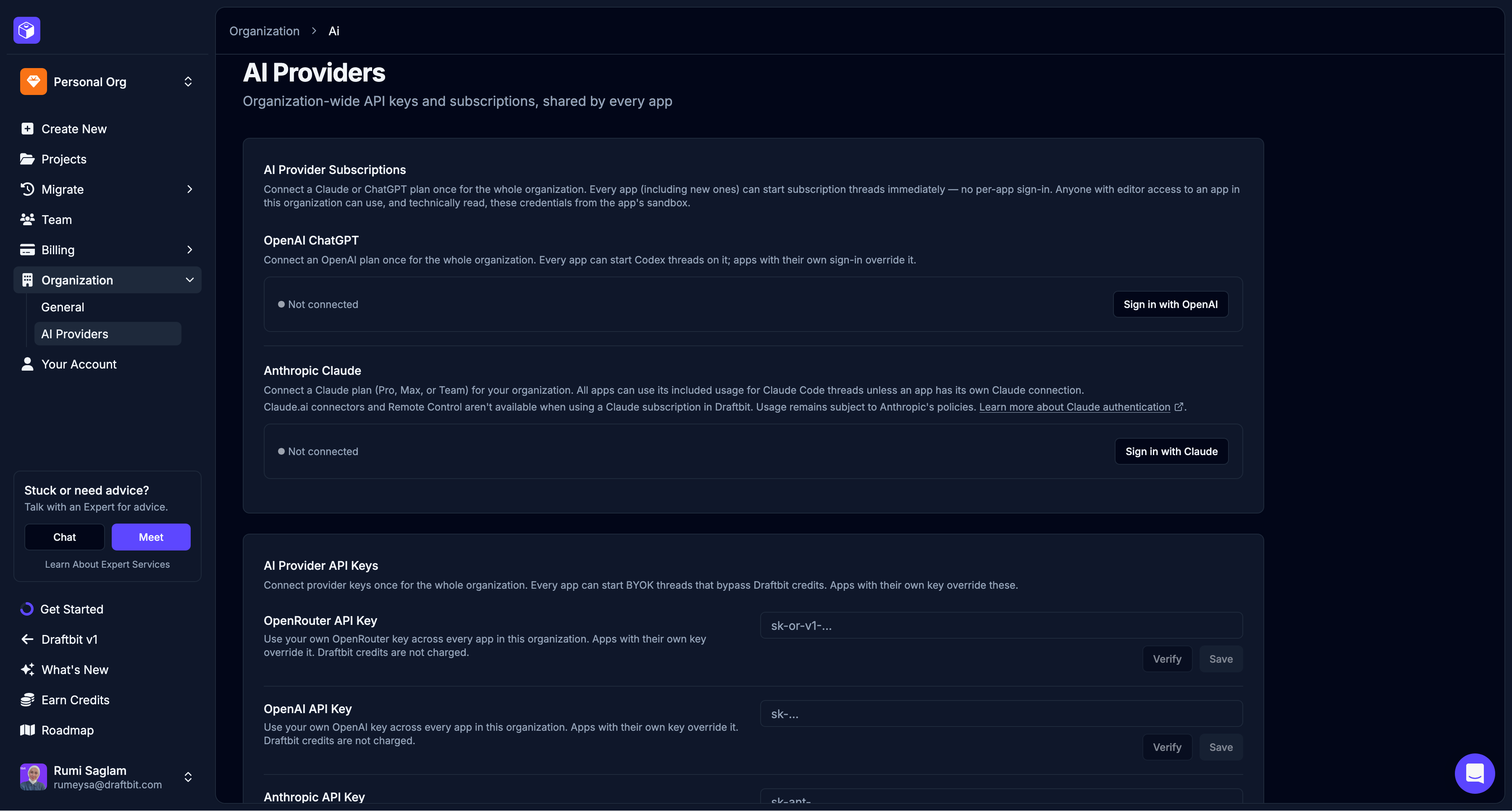
The page has the same two sections as an app’s Agents & Models section:
| Section | What it does |
|---|---|
| AI Provider Subscriptions | Connect a ChatGPT or Claude plan once. Every app can start subscription threads on it with no per-app sign-in. |
| AI Provider API Keys | Connect OpenRouter, OpenAI, or Anthropic keys once. Every app can start threads on them that bypass Draftbit credits. |
Connecting works the same way as in an app: follow the ChatGPT or Claude steps, or add a key. A connected subscription shows who connected it and when.
Keep in mind:
- Anyone with editor access to an app in the organization can use these credentials, and could read them from the app’s sandbox. Connect only subscriptions and keys you’re comfortable sharing with your editors.
- App-level connections override organization ones. In an app, an organization subscription shows Using organization subscription and an organization key shows Organization key. Select Sign in for this app instead or Override to use a different account for that app.
Disconnecting an organization subscription or key
Section titled “Disconnecting an organization subscription or key”Select Disconnect next to a subscription and confirm. Apps that were using it lose access the next time they sync with Draftbit, which happens when they start, check their connection, or start a run. Apps with their own sign-in for that provider aren’t affected.
To remove an organization key, select Remove. Apps without their own key stop using it. Apps with their own key aren’t affected.
Saved Prompts
Section titled “Saved Prompts”Open Settings and choose Saved Prompts under Agent.
Saved Prompts are reusable prompts that you can use when sending a message to the agent. They can be used to set the context for the agent’s response or to provide additional instructions for the agent to follow.
Creating a New Prompt
Section titled “Creating a New Prompt”Create a new prompt by clicking the  button.
| Input | Description |
|---|---|
| Name | The name of the prompt. |
| Prompt | Description of the prompt. |
Fill in the details for the prompt and click the  button.
Editing a Prompt
Section titled “Editing a Prompt”Edit a saved prompt by clicking the  button.
| Input | Description |
|---|---|
| Name | The name of the prompt. |
| Prompt | Description of the prompt. |
Fill in the details for the prompt and click the  button.
Deleting a Prompt
Section titled “Deleting a Prompt”Delete a saved prompt by clicking the  button.
Using a Saved Prompt
Section titled “Using a Saved Prompt”You can use a saved prompt by clicking the  button in the Agent tab.
Agent Instructions
Section titled “Agent Instructions”You can customize the system prompt that Draftbit attaches to each agent when it starts a new chat thread. This is useful for telling the agent about your project’s tech stack, conventions, and key files.
Each agent has its own dedicated instructions file:
| Agent | File | What it controls |
|---|---|---|
| Claude | CLAUDE.md | System prompt added to every Claude Code agent thread. |
| Codex | AGENTS.md | System prompt added to every OpenAI Codex agent thread. |
Open the file for the agent you want to configure, edit it inline, and save. The instructions take effect on the next thread that agent starts. The Instructions Agent sidebar on this page can also help you draft and refine these files conversationally.
Best practices
Section titled “Best practices”- Focus on providing details the agents need to know about the tech stack, conventions, and key files of your project.
- Set any conventions or rules you want the agents to follow, for example “always use the existing component library before creating new components”.
- Don’t include future plans or ideas for the project. This is just base knowledge.
- Provide only the critical details and aspects of your project. Adding too much information can overwhelm and slow down the agent’s performance, while also driving up cost of each request. Experiment to find the right balance.