

Connecting your app to Production with managed Supabase
Your managed Supabase backend has separate databases for Development and Production. Your preview uses Development. Before you launch, you need to deploy your database changes to Production and point your app to it.
Open the Supabase panel from Project Integrations → Supabase, or any of the other routes in Opening the Supabase panel. The environment dropdown at the top right switches between Development and Production.
Step 1: Deploy your database changes
Section titled “Step 1: Deploy your database changes”- Go to Database → Migrations to see the migrations applied to the selected environment. Switch the environment dropdown between Development and Production to compare them. Any migration listed for Development but not for Production will run when you deploy.
- Click Deploy to production.
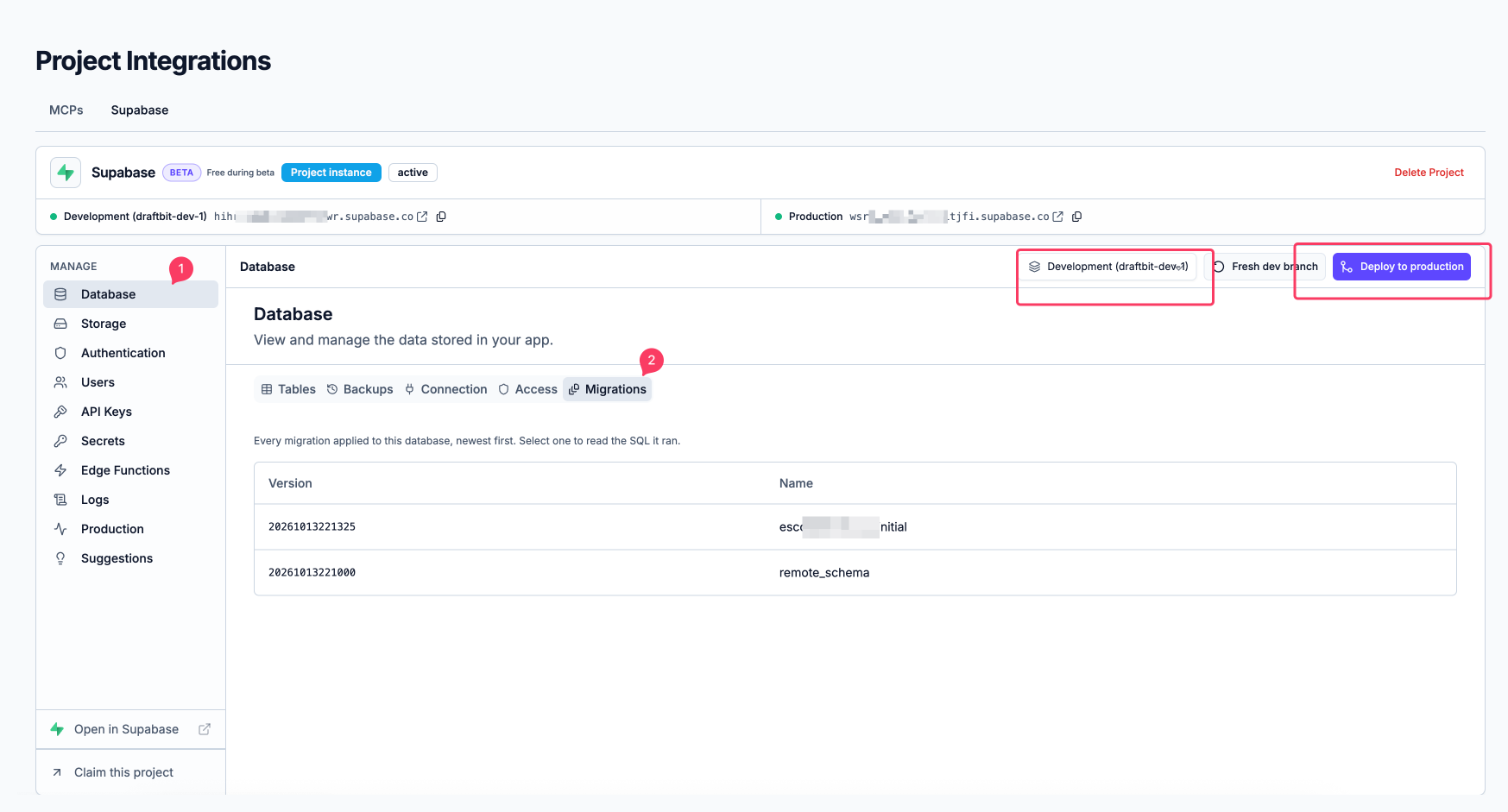
Deploying copies your database structure (migrations), Edge Functions, and your auth settings to Production. Custom SMTP and auth hooks aren’t copied with a deploy. It doesn’t copy data either: rows in your tables, user accounts, and uploaded files stay in Development, and Production starts with its own data.
Step 2: Point your app to Production
Section titled “Step 2: Point your app to Production”Your app reads the Supabase URL and publishable key from its environment variables, and Draftbit doesn’t add them for you. Add the Production values for the Production environment in each app that uses Supabase. Connecting your apps to Supabase covers where to find each value and how to set a different value per environment. In short:
-
Switch the environment dropdown to Production, copy the Production URL shown at the top, then go to API Keys and copy the Publishable key (it starts with
sb_publishable).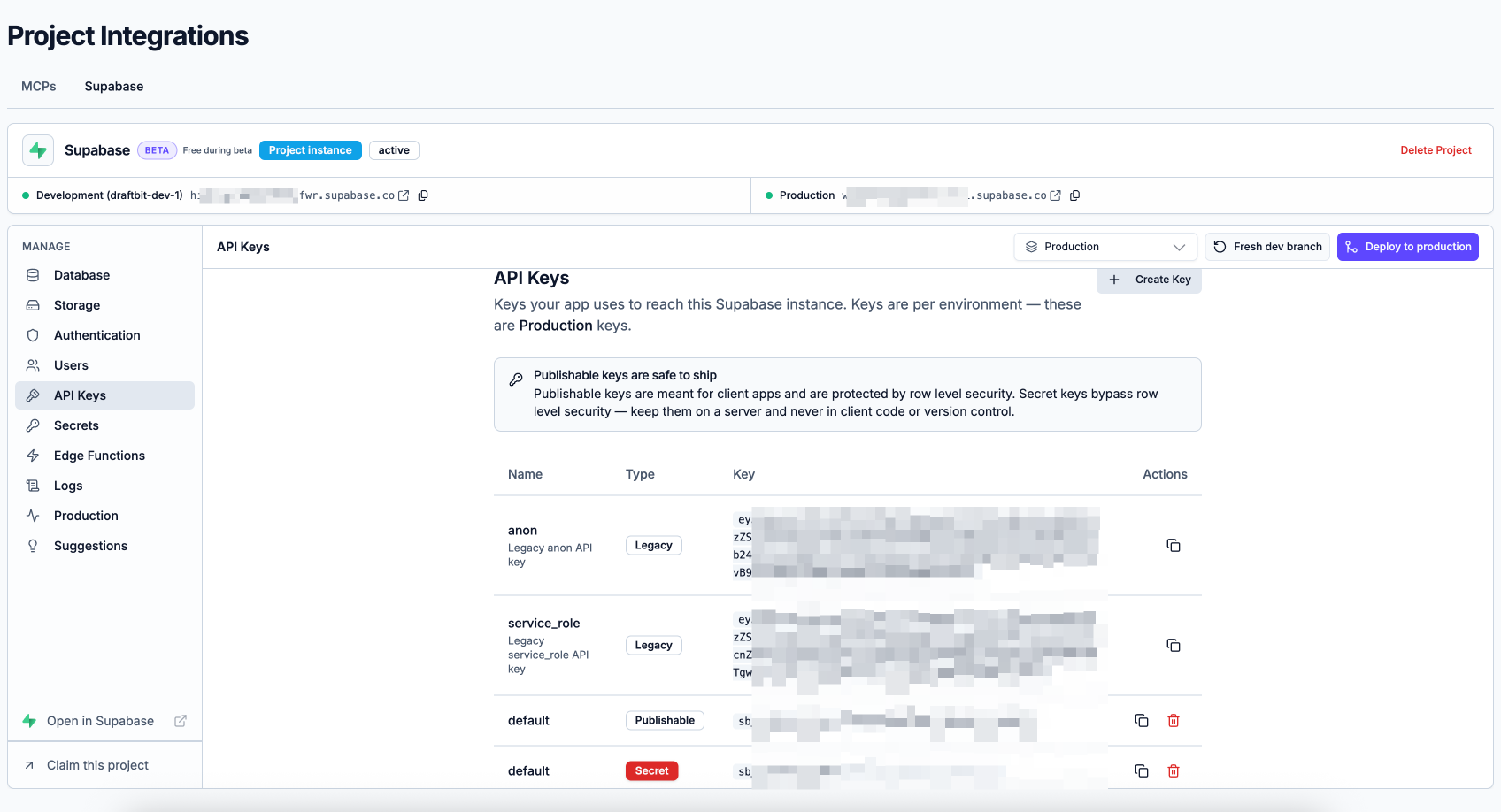
-
In your app, open Build Config → Environment Variables and add
EXPO_PUBLIC_SUPABASE_URLandEXPO_PUBLIC_SUPABASE_PUBLISHABLE_KEYwith those values, turned on for Production only. Keep your existing Development variables with the same names.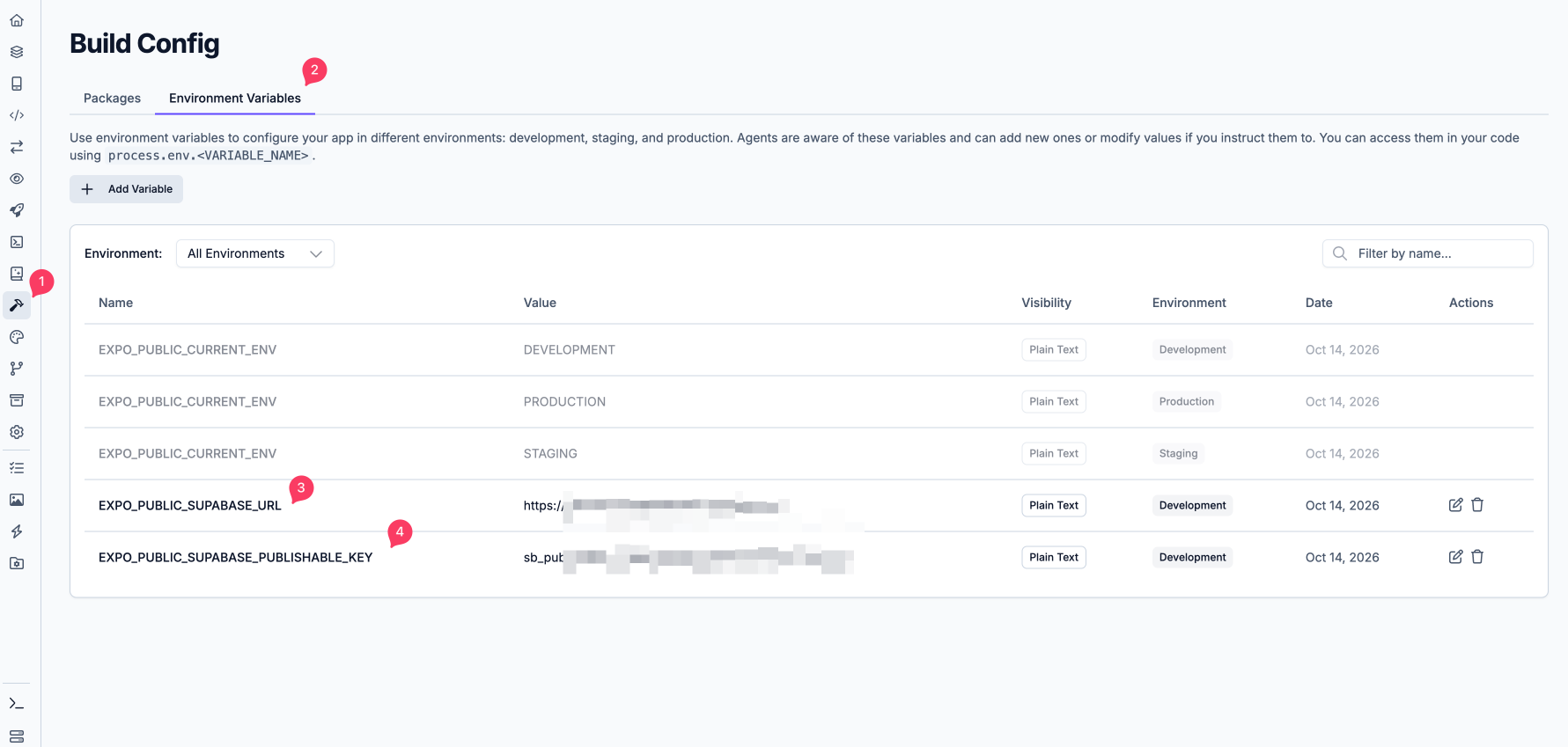
-
Publish your app again. Production values are read when you publish, so earlier publishes keep the old values.
Step 3: Check your Production auth settings
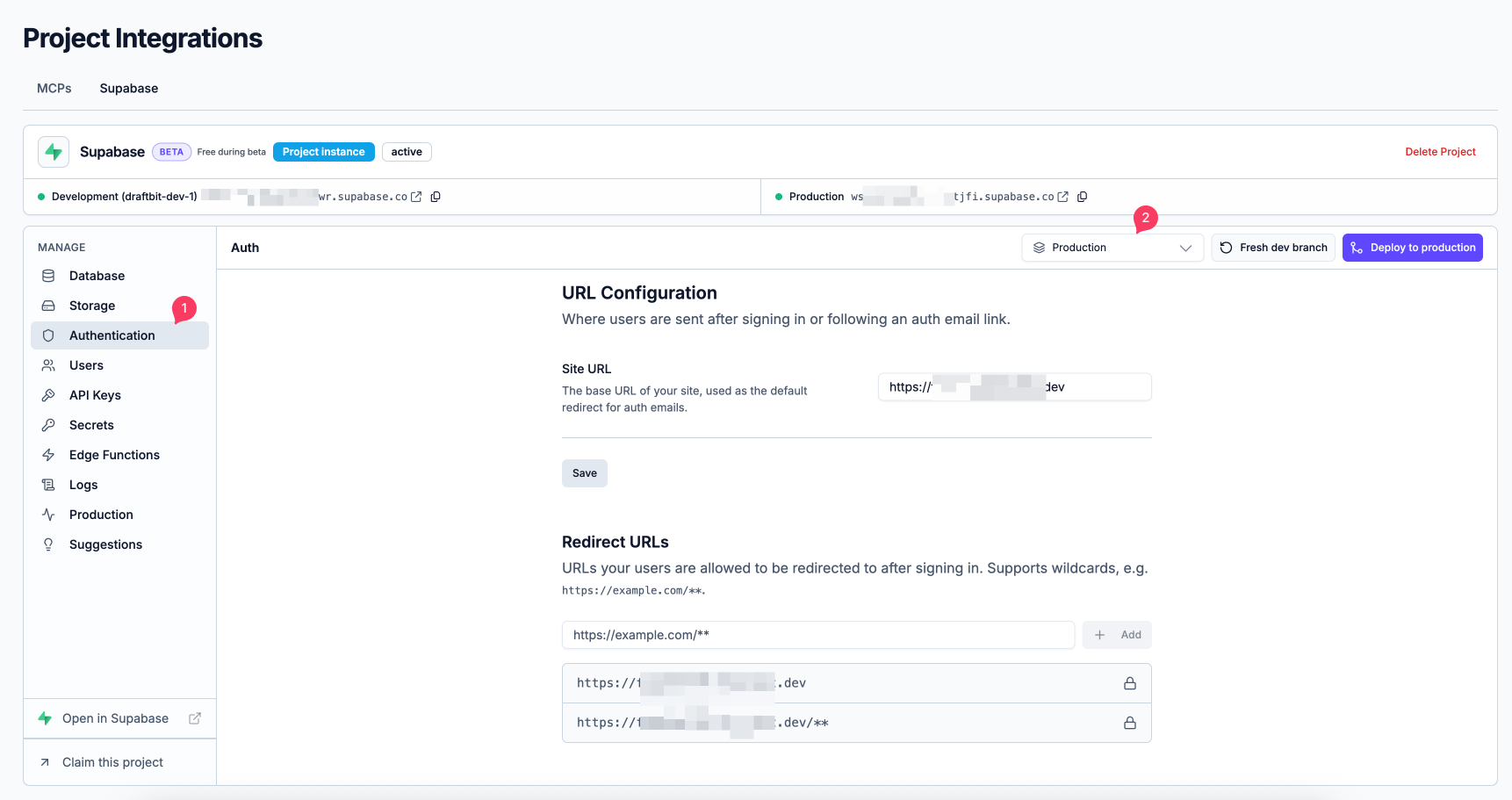
Section titled “Step 3: Check your Production auth settings”Each deploy copies your Development auth settings to Production, except Custom SMTP and auth hooks, and replaces what Production had. So make auth changes in Development before you deploy, not in Production, or the next deploy undoes them. After deploying, select Production, go to Authentication, and check:
- URL Configuration: the Site URL and Redirect URLs point to your app, not localhost, so confirmation and password reset links open your app.
- Confirm email: new Supabase projects start with email confirmation turned off. If you want new users to verify their email, turn it on in Development and deploy again.
- Custom SMTP is set up, so users reliably get their emails. See Setting up custom SMTP for auth emails.
Step 4: Test before launch
Section titled “Step 4: Test before launch”In a Production build, try one full flow: sign up, confirm your email, sign in, reset your password and use your app’s main feature. Remember that Production is a separate database, so test accounts from your preview won’t be there.